Hi everyone, 😄
Thank you very much for all the feedback, reports, and suggestions you have continued to share with us.
This update focuses on making information easier to find and giving you more control over how you play.
Supplies can now show which items are related to your active Projects, movement and Forklift controls can be rebound more freely, and the Project and Tutorial panels have received several improvements to make larger lists easier to navigate.
With that in mind, here is what is included in this update.
Main Updates
1. Project Needs in Supplies
This update includes a new way to help track what your active Projects still require while shopping for supplies.
Previously, Projects showed the finished products you needed to deliver, while the Supplies tab contained the raw materials, packaging, and labels needed to produce them. This meant you often had to remember the recipe yourself while shopping.
Supply cards can now help connect those two parts of the process.
a. Project Need Indicator
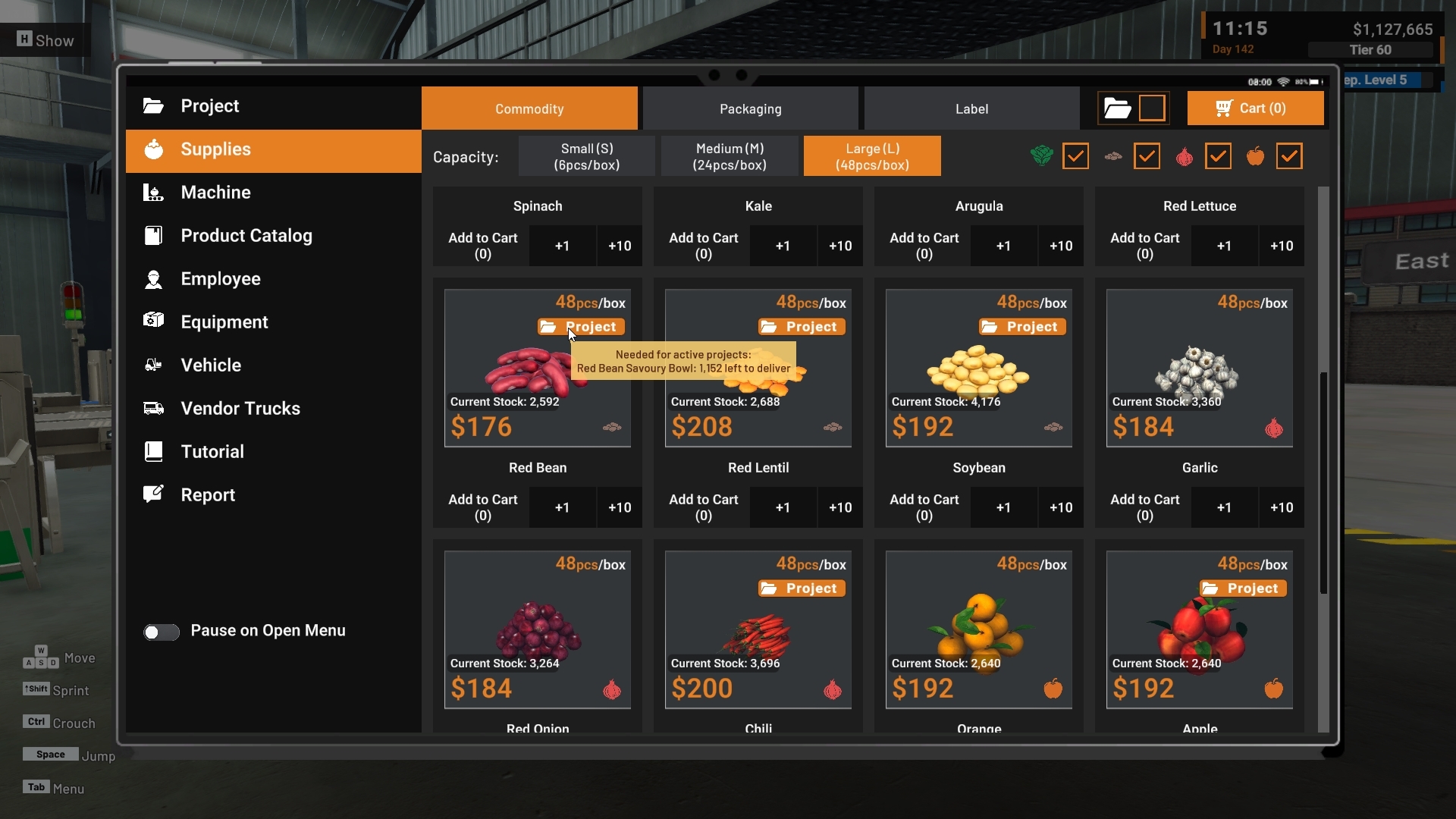
Supplies related to an Active Project can now display a Project indicator directly on their card.
Hovering over the indicator shows which Project products still require that supply and how many finished products remain to be delivered.
If multiple active Projects require the same product, their remaining requirements are combined.
The indicator only considers:
Active Projects
Project targets that are not yet fully delivered
Supplies that are still locked can also display the indicator if they are required by an active Project.
Please note that the displayed number represents the number of finished products still required for delivery.
It does not tell you how many raw materials, packaging items, Labels, or Boxes you should purchase.

b. Project Needs Filter
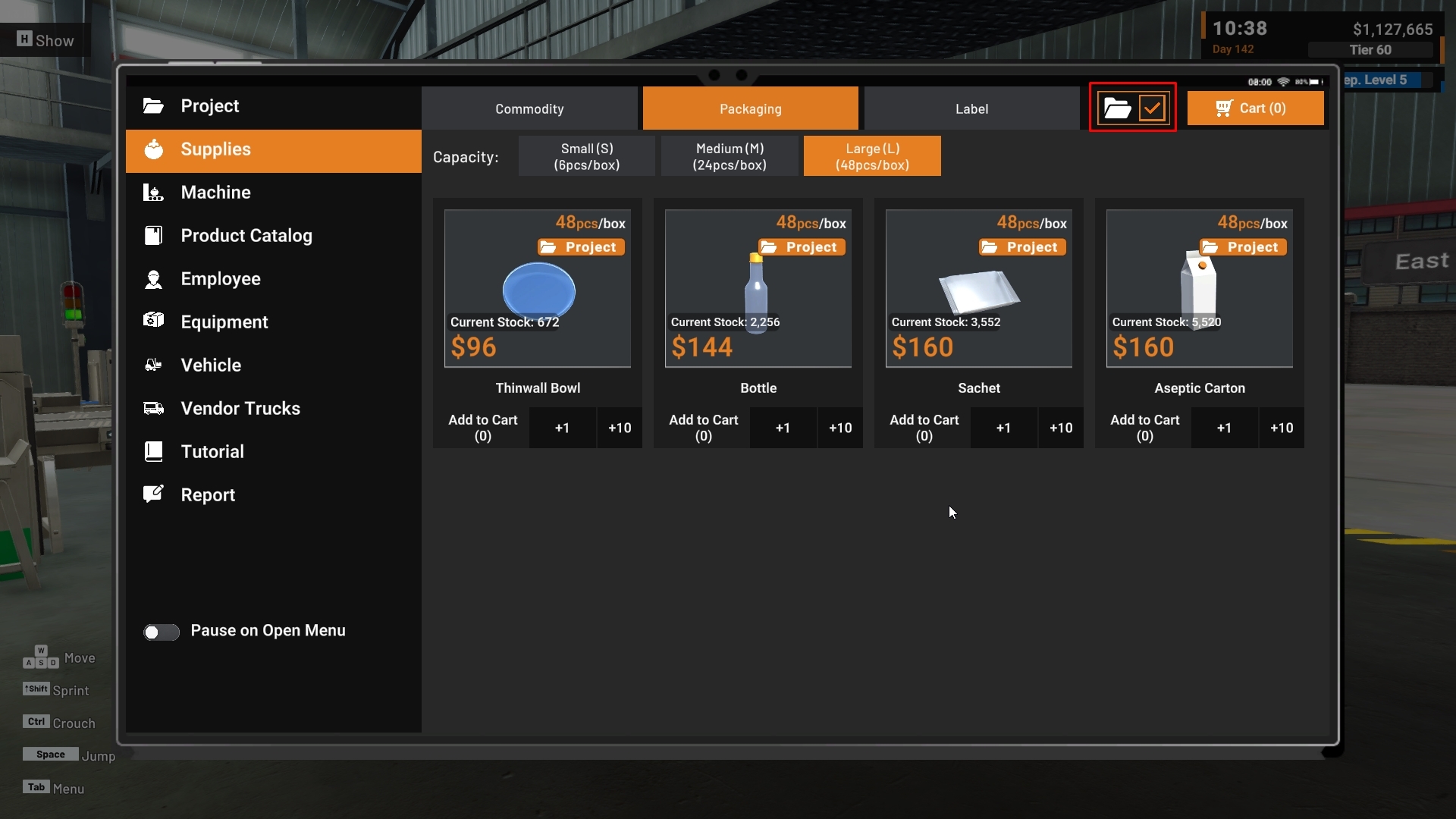
A new Project needs filter is also available in the Supplies panel.
When enabled, the Supplies tab only shows items related to your currently active Project requirements.
The same filter works across:
Raw Material
Packaging
Label
This makes it easier to move through each Supplies category without having to remember every part of the recipe yourself.
If there are no matching Project requirements in the selected tab, the panel will indicate that there are currently no Project needs in that category.


2. Custom Movement and Forklift Controls
Movement controls can now be rebound individually through the Keybinding settings.
This gives more flexibility for different keyboard layouts, including AZERTY keyboards, left-handed setups, and other custom control preferences.
a. Movement Keybinding
The new Movement section allows each direction to be rebound separately:
Forward
Backward
Left
Right
Forklift driving also follows the same Movement bindings, so movement directions do not need to be configured separately when entering a Forklift.

b. Important Change for Arrow Key Users
Arrow Keys are no longer assigned as additional movement controls by default.
Previously, both WASD and the Arrow Keys could be used for movement. Supporting individual movement rebinding requires each direction to use the configurable Movement bindings instead.
If you prefer using the Arrow Keys, you can assign them manually through the Movement section in the Keybinding settings.
The gamepad D-pad is not affected by this change and continues to work as before.
c. Forklift Keybinding
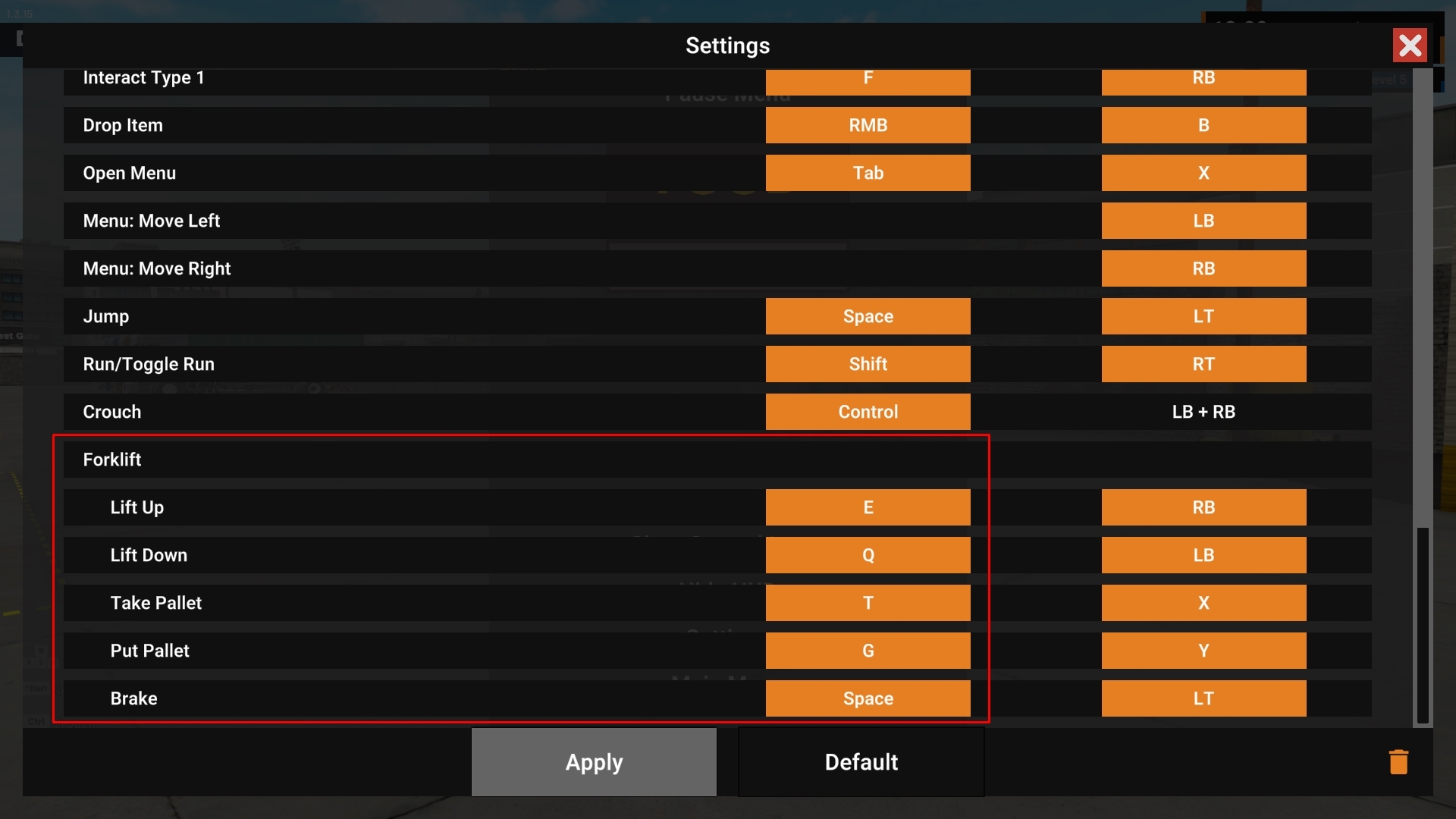
A new Forklift section has also been added to the Keybinding settings.
The following Forklift actions can now be rebound:
Lift Up
Lift Down
Take Pallet
Put Pallet
Brake
This allows Forklift controls to be adjusted alongside your Movement layout and helps avoid unwanted control conflicts when using a custom keyboard setup.
The Keybinding panel has also received some additional input improvements, including clearer keyboard and mouse button information.
3. Project Panel Improvements
The Project panel has received new filtering and recipe-reference tools to make it easier to choose and prepare for Projects.
a. Commodity Group Filters
Projects can now be filtered by commodity group:
Vegetables
Legume
Spice
Fruit
This makes it easier to narrow the Project list based on the type of production you want to focus on.
If the active filters hide all available Projects, the panel will now show a specific message indicating that no Projects match the current filters.

b. Product Catalog Shortcut
Finished-product Project cards now include a shortcut to their related Product Catalog card.
This opens the product information directly as a popup, allowing you to review its recipe and production flow without leaving the Project panel and searching through the catalog manually.
The popup is view-only.
Actions such as purchasing the Product Catalog, setting it as Active, or removing it from Active are not available from this Project shortcut.
Projects that target cut commodities do not display this shortcut because those targets do not have a Product Catalog card.
The popup opens directly to the production flow information so you can quickly review which Machines are needed.


Improvements
1. Tutorial List Grouped by Level
The Tutorial list has been reorganized to make it easier to navigate as more tutorials are unlocked.
With around 57 Levels and roughly 200 tutorial entries, the previous flat list could become difficult to browse.
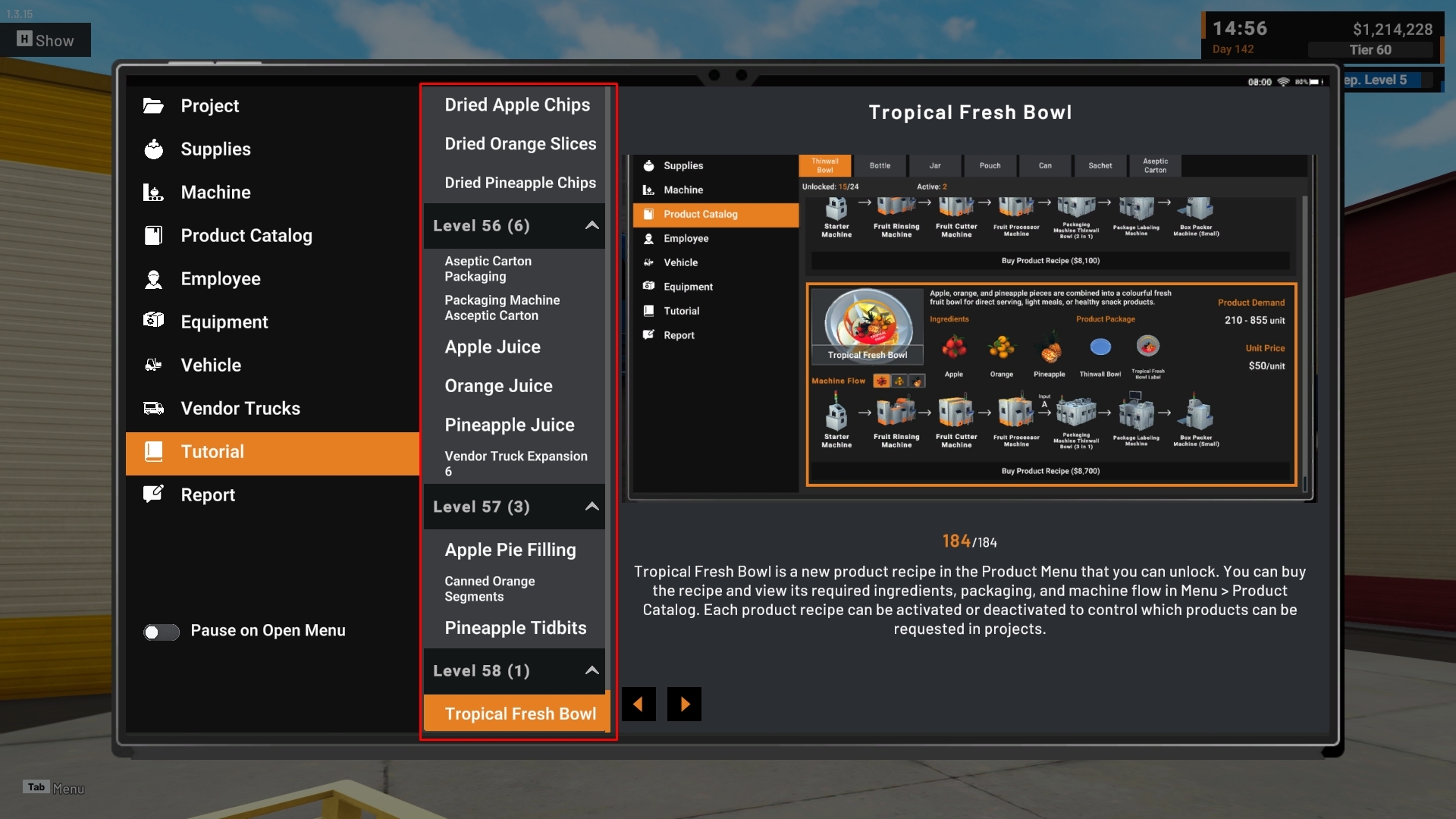
Tutorials are now grouped under collapsible Level headers.
For example:
Level 12 (4)
The number shows how many tutorial entries are available in that Level.
The Tutorial panel also helps keep your current position easier to find:
The latest available tutorial is selected when appropriate.
The list automatically scrolls to the active tutorial.
Previous and Next navigation continues across the entire Tutorial list.
A collapsed Level will automatically open when navigation moves into one of its tutorials.
Levels that have not yet been unlocked remain hidden as before.
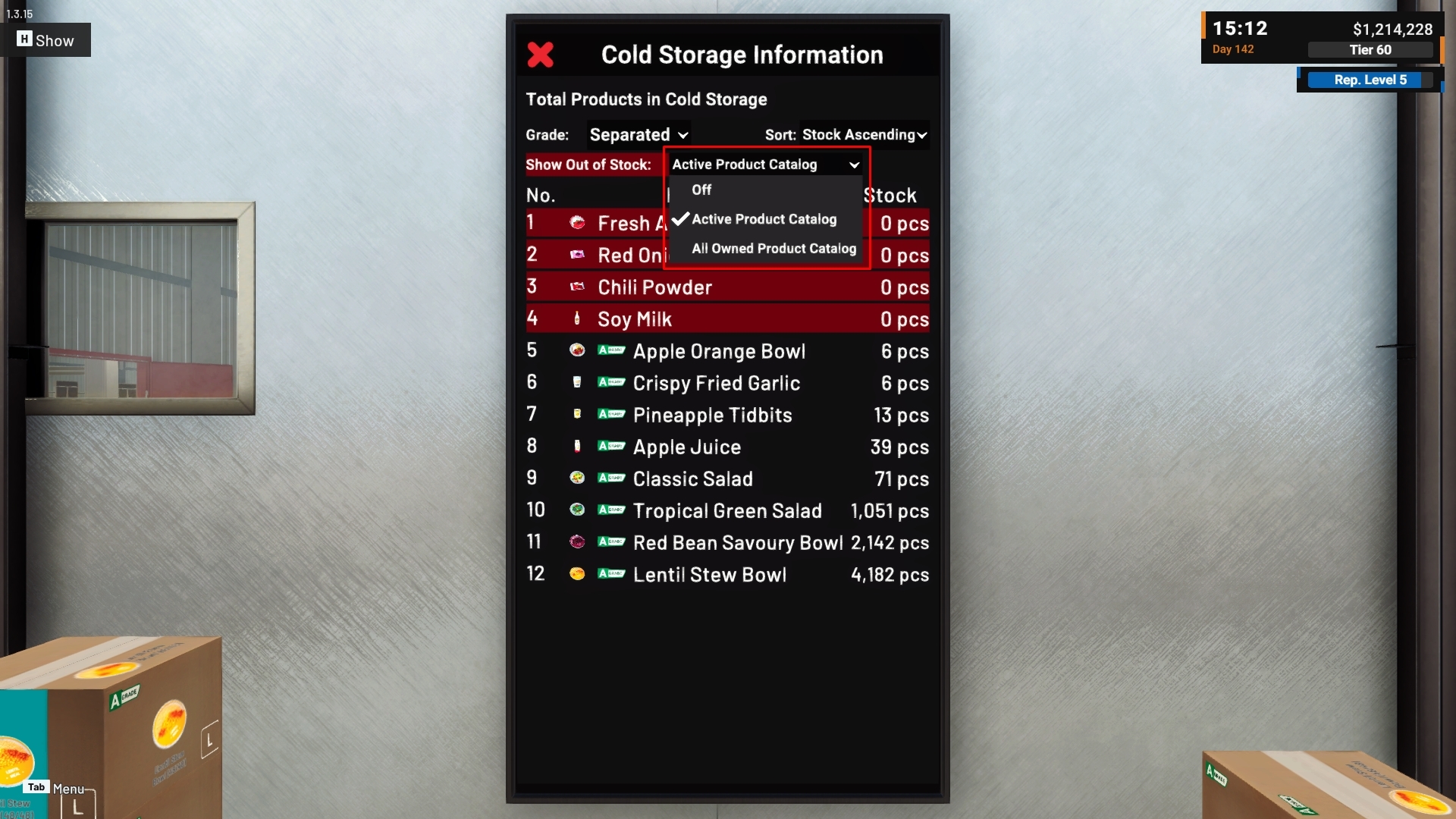
2. Show Out of Stock Options
The existing Show Out of Stock setting in Cold Storage has been expanded from a simple On/Off toggle into three options:
Option | Behavior |
|---|---|
Off | Hides products with 0 stock |
Active Product Catalog | Shows 0-stock products only from Active Product Catalogs |
All Owned Product Catalog | Shows 0-stock products from all owned Product Catalogs |
The new Active Product Catalog option is useful for larger factories where you may own many Product Catalogs but only want to monitor products that are currently part of your active production setup.
Existing settings are preserved.
If you previously had Show Out of Stock enabled, it will automatically use All Owned Product Catalog, maintaining the same behavior you had before.
3. Commodity Group Icon Improvements
Commodity group icons are now more visually distinct and are used more consistently across the tablet.
Group icons now have their own visual colors and appear across more related interfaces, including:
Commodity filters
Buy Seed cards
Processing Machine cards
Product Catalog recipe cards
Project cards
This makes commodity groups easier to recognize across different parts of the game.

4. Buy Seed Warning Icon
The warning icon used in Buy Seed has also been updated for better readability.
The new design keeps the catalog/book element easier to identify while making the warning indicator more visually distinct.
This is a visual improvement only and does not change Buy Seed behavior.
Thank you again for your continued support, reports, and feedback.
The new Project Needs tools were added to make it easier to keep track of what your active Projects require, especially when moving between Project targets, recipes, and the Supplies shop.
We will continue reviewing ways to make factory information easier to find and give you more flexibility over controls and tablet management.
If you encounter any issues or unexpected behavior, please report them through the in-game Bug Report Menu and/or the Steam Discussions so we can investigate further.
See you in the next update! 🥗🚚
[dynamiclink href="https://store.steampowered.com/app/3928990/Food_Processing_Simulator/"]