Greetings, Wayfarers!
Your next expedition can take you from a cliffside climb to a swim beneath the surface. Making Waves Update 8.9.0 brings two new profession specializations, Strategist and Orienteering, alongside swimming and maps you can craft and trade. Coordinate party attacks with called shots, and explore new combat options with expanded Sniper Rifle and Grenade Launcher abilities.
Back home, growing town territories and larger homesteads give your next project more room. Homestead packup lets you bring your builds to a new location, while shopkeepers gain more control over their listings.
New Professions and Exploration Advancements
Leadership: Strategist
Strategists coordinate attacks with called shots. Learn Strategist at a Skills Kiosk, then use Change Loadout on a Leader Staff to equip your learned calls in its special slots.
While leading a party, ready the staff, aim at a hostile creature within 40 meters, and activate a call. The target is marked for eight seconds, with a countdown and contributor count above its head. You can switch to a weapon after marking it.
To complete the call, at least half the party, rounded up, must each land a direct damaging hit before time runs out. A minimum of two players must contribute, and the leader counts. Each player counts only once; damage over time and pets do not add contributors. The requirement is based on the party's full membership when the call begins, so coordinate with your group before calling a target.
Completing the call immediately applies its effect:
Pin Them Down! slows the target's movement.
Knock Them Off Balance! applies Dizziness, making attacks take longer to recharge.
Stop Them Cold! stuns the target. Damage breaks the stun.
Break Their Nerve! makes susceptible creatures flee. They calm down after escaping nearby threats.
Keep Them Guessing! applies Confusion, disrupting the creature's targeting.
Calls cost 100 Focus before modifiers and share a 20-second cooldown. Only one call can be active per party. Successful calls earn Strategist XP, which you can spend on additional calls and upgrades to their effects. Some creatures resist particular effects.
Ranger: Orienteering
Learn Orienteering at a Skills Kiosk for 300 Ranger XP and 300 klaatus. Keep it in active practice to earn its own XP by swimming, climbing, and traveling uphill.
Swimming training improves your speed in and under the water.
Climbing training improves climbing speed and reduces stamina spent while moving along a climb.
Hiking reduces the speed penalty on hills. It does not increase your speed on flat ground.
Piton training unlocks the Climbing Kit, and Footing unlocks Traction Cleats.
Craft either utility at a Field Fabricator I with 10 Very Common Metal and 5 Plant Fiber, then equip it in a utility slot and use the key shown for that slot.
To use a Climbing Kit, stop moving while climbing and activate it to anchor yourself and recover stamina. Move, jump, let go, or press the utility key again to release. Taking damage also ends the rest. Hanging still without a kit does not drain stamina, but it does not restore stamina either, so climbing requires more planning now.
Activate Traction Cleats to prevent ground sliding for a short time. They help you hold your footing on slopes; they do not let you walk up impassable walls.
Both utilities cost stamina and durability when activated and can be repaired. Crafting stats affect their stamina cost, recovery or duration, durability, and reuse delay.
Swimming
You can now swim at the surface and dive underwater without learning a skill first. Orienteering makes you a better swimmer, but everyone can get into the water.
Use your movement controls to swim, Jump to rise, and your descend control to dive—Space and X with the default bindings. Sprint works in the water and spends stamina. With full Swimming training, your swimming sprint can match your flat-ground sprint speed.
You can swim at the surface with a tool drawn, but must stop and tread water to fire. Underwater, you can use your tools while swimming; aiming with a tool slows you down. A bubble helmet appears automatically when you submerge, as it does in space.
Swimming includes new animations, splashes, and underwater effects. Climbing out of the water and using the grapple around water have also been improved.
“Sprint” still works while swimming.
Combat: General
Hit detection has been significantly improved for all projectiles and the Healix heal beam. This should in particular help address the issue where you see your shot hit the target on the client but no damage registers.
Knockback movement and hit effects have also been corrected so that being pushed and steering afterward behave more consistently.
Combat: Sniper Rifle Additional Skills
The Sniper Rifle wasn’t quite hitting the mark with how much payoff there was for so much investment with the Overcharge requirements. It received some general buffs across the board with higher base damage and reduced base movement penalty, and received some new progression options with 2 new specials and several new passives. In combination with the hit detection fix, it should feel a lot more effective now.
The Sniper Rifle's base shot damage has doubled, including its Heightened Focus variant. You can now move slowly while charging without an upgrade. New Quick Charge and Mobile Overcharge upgrades further reduce normal shot charge time and improve movement while charging.
Spotter: Deploy a stationary drone to watch your back for a duration. If it detects an enemy sneaking past it, it’ll detonate, slowing them down and giving you time to reposition.
Spotter Electrify replaces the Slow with an Electrify status.
Spotter Fortress allows the Spotter drone to additionally deploy a Fortress Shield if it detects a projectile coming past it. The drone can still trigger its enemy trap afterward.
Predation: Mark an enemy as your prey for a duration. Overcharged Sniper shots dealt during that time will add a stack per charge level. Once the stacks reach a threshold, the enemy will take a big bonus hit with significantly increased damage against low-health targets.
Upgrade its damage and reduce the Overcharge threshold.
Relentless Predation fully refunds the ability’s cooldown when the marked target is killed by your Sniper Rifle.
Heightened Focus: Has a newly added screen effect to indicate its duration.
Explosive Round: Has been removed for now and replaced with Spotter.
Smokescreen: now clears your existing threat when used, helping you break away and reposition. Enemies can quickly target you again if nobody else is distracting them.
New visual effects make Predation's mark and progress easier to follow. Heightened Focus also has a screen effect to show when it is active.
Combat: Grenade Launcher Additional Skills
The Grenade Launcher also received some baseline buffs, increasing its base explosion radius and projectile flight speeds, making it easier to land hits. Its skill tree has gained some new upgrades and 2 new advanced specials to further reinforce its crowd control and AoE specialist fantasy.
Bombardment: Hold the ability key to preview the firing arc, then release to fire a salvo of five grenades. Upgrades increase the salvo to seven or nine grenades, improve Focus efficiency, and increase blast radius.
Gravity Well: Launch a grenade that creates a temporary field, repeatedly pulling nearby enemies toward its center and damaging them. Upgrades increase its duration and radius and reduce its Focus cost.
Cluster grenades have also been corrected so their secondary projectiles do not start inside terrain. The Double Cluster upgrade fires two Cluster Bomb grenades side by side, and Cluster Damage upgrades improve the smaller explosions.
The Grenade Launcher skill tree has been streamlined. Repulsor area and Uplift height upgrades are consolidated, and several efficiency, flight-speed, and cooldown upgrade nodes have been removed.
Other upgrades increase Repulsor's knockback, reduce Singularity's cooldown and Focus cost, and extend Uplift's duration through Uplift Suspension.
Combat: Assault Rifle Improvements
All of the Ammo buffs have new screen effects to indicate their duration.
Homing Ammo: Significantly increased its homing strength.
Speed Ammo: Fixed a bug that caused it to do much less damage than intended.
Cartography: Map Crafting
Craft a Blank Data Chip at a Field Fabricator I using 2 Very Common Metal. At a Cartography Console, use the chip to make a map from your own surveys of the current planet. You must have Cartography in active practice and at least one unexpired personal survey. Stay near the console until crafting finishes.
The Cartography Console can be made at a Machine Shop I using 12 Very Common Metal and 2 Crystal Blanks.
A finished map records the surveyed terrain and your active personal waypoints within that coverage. It is a snapshot: later surveys or waypoint edits do not change an existing map. Mission, corpse, and party markers are not copied. Maps made by other players cannot be used as your source survey data.
Using and checking maps
Carry a map for your current planet, open the map screen, and use the map selector to choose it alongside your personal surveys. Check the map's creator, coverage, and remaining integrity before buying. Maps also appear in the Maps category when browsing goods.
The creator can right-click a carried map and choose Edit map notes to add instructions or other information, up to 280 characters. Other players can read those notes when inspecting it.
Your personal surveys still expire after seven real-world days, including time offline. Terrain and waypoint labels recorded on a crafted map remain fixed. Instead of expiring with its source surveys, a crafted map has ten hours of active display time:
Displaying it on the full map or minimap uses durability.
Showing the same map in both views at once counts only once.
Closing both views stops the wear. Carrying, storing, trading, inspecting, or keeping it while offline does not use that time.
Maps cannot be repaired and are used up when their durability reaches zero.
Using someone else's map reveals its recorded terrain but does not complete your personal surveys or award survey XP.
Minimap
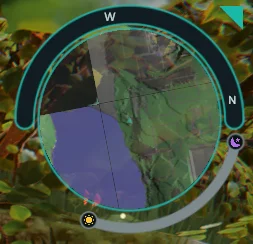
Equip a map in a utility slot and press that slot's key to toggle its minimap. Press the key again to close it, or use another equipped map's key to switch maps.
The minimap centers on you and rotates with your facing direction while keeping labels upright. It also includes a clock showing the local time of day. Free your cursor to drag the map or its corner handle—hold Left Alt with the default bindings. Its position is saved; use the lock button to prevent accidental dragging.
Change its size under Options → HUD → Minimap size (%). It also follows the relevant HUD appearance settings.
Player Town Territory System
Town Territory and Growing Governments
Town government now has a defined territory. A newly founded town can reserve land and set local rules immediately, but its authority begins within a limited area. As the GovBot levels up, that territory expands. Only a fully upgraded GovBot governs the entire planet.
Where Town Rules Apply
Starting territory is centered on the town’s original landing location and is normally 256 × 256 meters. It is clipped to the planet’s boundaries and reduced on smaller maps. Its original landing anchor remains fixed as the town grows.
Territory extends through the full vertical span of the map. Going underground or building overhead does not put you outside town jurisdiction.
The important change from the previous government system is that town rules apply inside town territory. Outside it, the planet’s default rules and existing property permissions apply. Special worlds retain their existing rules.
Permission checks use the area affected by an action, rather than where your character stands. If a mining, paving, or other operation crosses the border, it must satisfy the rules on both sides. This also applies to a homestead whose footprint straddles the border. Standing outside town does not let you reach into it to bypass a restriction.
Government regulations and licenses are available from founding, within the current territory.
Government permission labels now say Town Mining, Town Paving, and so on where these territorial rules apply.
Reserving Land from Founding
From founding, the mayor and citizens with Manage Zoning Lots permission can place zoning lots entirely within the current territory. A lot that extends outside the boundary is rejected without consuming the zoning item.
The starting GovBot shop offers the existing 9-meter and 21-meter cubic zoning lots, plus new rectangular road lots with these ground footprints:
7 × 21 meters
7 × 63 meters
13 × 63 meters
Each road footprint is available in both axis-aligned orientations, and road lots are 21 meters tall. Road kits cost 15,000 klaatus each. Normal purchase permissions and funding requirements apply. Larger existing zoning sizes still require later GovBot upgrades.
Existing lot sizes and prices remain unchanged. Each new road kit costs 15,000. Normal purchasing permissions and funding requirements still apply; founding does not provide free zoning items. Rectangular road kits are not offered in space-world shops.
Towns can therefore reserve streets, public spaces, and future building sites before construction begins. There is no additional founding-specific limit on the number of zoning lots, but every lot must meet the usual placement requirements and fit within current territory. Land shown in the next expansion cannot be reserved until that expansion occurs.
Existing Properties and Shields
Territory does not replace individual properties:
Homesteads remain independent properties, including those outside town.
Existing zoning lots outside the new boundary remain in place and retain their local permissions, shields, and release behavior.
An outside zoning lot does not extend town jurisdiction around itself.
This update does not introduce town-designated residential plots for players to claim.
Town territory is a boundary for government authority, not a territory-wide material shield. Physical shields remain attached to homesteads and zoning lots. Rectangular lot shields protect all six faces, including the top and bottom.
Permissions and Homestead Exceptions
Government regulations and licenses become available from founding, within the town’s territory. Local property restrictions and Servitor edicts still matter; entering town does not grant blanket permission to build, mine, or use someone else’s property.
The government’s homestead mining and paving exceptions also remain subject to local permission. To use an exception, the entire affected area must fit inside one private homestead. An exception does not authorize work across its boundary.
Seeing the Border
The public map shows the current territory, labeled with the town’s name.
The mayor and citizens with Manage Zoning Lots permission also see Next town expansion, immediately after the current town entry. Its boundary is a dotted light-blue line; current territory remains solid blue. Other players do not see the expansion preview.
An optional, subtle blue outline marks the current border in the world, including on eligible underground and elevated surfaces. Enable it under Options → Gameplay → Town Territory Border. It is off by default, and your preference is saved locally. It is independent of the homestead-boundary setting.
The next expansion appears only on the map.
Entering and Leaving Town
Crossing the border can display a small Welcome to or Leaving banner just below the alert area, using the existing welcome sound.
These banners dismiss automatically and do not block movement, controls, or other UI. Entry and exit banners share a 30-second cooldown, preventing repeated popups when moving back and forth across the border.
Information chat still updates on each crossing, providing a rereadable summary of town policies and homestead exceptions even when a banner is suppressed. That summary describes policy; individual property restrictions and edicts can still prevent an action.
On login or arrival, the planet welcome takes priority over the town banner. The two do not overlap, and a suppressed town banner is not replayed afterward.
Naming the Town
The current mayor can open GovBot → Town Name and enter a name directly. The dialog starts with the existing name and provides Save and Cancel. Enter saves; Escape or closing the dialog cancels.
Names can contain up to 48 characters and pass through the server’s text filter. Rejected edits remain available for correction. Town names are separate from planet and citizenship names, and appear on the GovBot, territory map labels, and crossing banners. Until named, a town appears as Unnamed Town.
UX and UI Improvements
Market Listing Improvements
Merchant quality-of-life improvements make it easier to find goods, compare offers, and manage your shop.
Buy the amount you need: Purchase part of a stack instead of the entire listing.
Bulk sales: Sellers can require buyers to purchase the entire stack, allowing them to offer bulk discounts.
Better pricing for inexpensive goods: Sellers can offer bundles such as five items for one klaatu. Smaller purchases are supported, with the final cost rounded up once per purchase.
Full item details: A dedicated pane shows the item’s stats, durability, status effects, and description alongside the offer.
Broader search: Find goods by name or crafting category, including tools, weapons, wood, rocks, and ore.
Clearer shop management: The Sell & History screen places inventory, listings, and offer details in three columns.
Flexible listings: Change prices, retrieve unsold stock, review sales history, and collect proceeds while the remaining stock stays for sale.
Limited-time listings: You can now choose from several listing durations with varying listing fees. Expired offers can be retrieved or relisted for a new listing fee.
Stock counts, available earnings, and open shop views now update more reliably after transactions. Shop access still follows homestead permissions.
Shop access continues to use existing homestead permissions. Merchant skills and larger marketplace expansions are planned separately.
Audio Options
We’ve added audio sliders so you can independently adjust the following:
Master
SFX
Combat and hazards
Tools
Creatures
Foley
Ambience
CA simulation
Objects
Presentation SFX
State effects
UI
Music
Presentation music
Background music
Positional music
You can also select which audio device to use for output.
Profession icons and Battle Comms
XP alerts now show the icon for the profession that earned the XP. Those icons also appear beside professions in the Skills window.
Party leaders can use Battle Comms buttons directly beside members in the party roster to mark Needs heal, Needs revive, Needs support, or Gather at. Setting or changing a signal requires Battle Comms training and costs 10 Focus. Click the selected signal again to clear it for free. The party sees the signal, with changes also announced in Party chat. A readied Leader Staff is not required.
Homestead sizes and expansion
The Homesteader Shop now offers 29-, 37-, and 45-meter cubic Homesteaders alongside the standard 21-meter kit.
To line up neighboring homesteads, open your homestead console and choose Expand. Select a kit from your inventory and the side to attach it to, including above or below. You need an available homestead slot, and normal placement permissions and limits still apply. Zoning lots can also be attached through their consoles, subject to town territory and zoning permissions.
The map now reports your offworld homestead count to help you keep track of homes elsewhere.
Homestead Packup
Use the homestead console's packup option to gather placed building items and constructed blocks into a Packed Homestead item while preserving their layout. Zoning lots can be packed too.
To restore the contents, stand inside an empty homestead or zoning lot and use the pack's Unpack interaction. The destination must be large enough, have enough building capacity, and allow you to build. Packs containing entitlement items also require the appropriate owner entitlement.
Packed contents return to their saved positions relative to the destination lot. Packs cannot be discarded or put into storage; packs containing entitlement or government items also cannot be traded. Restored objects now retain their hover prompts and visibility correctly.
Character and Graphics Options
Character creation has a wider selection of skin colors, along with fixes to avatar and hair appearance.
New Terrain Textures
Terrain has new textures with improved detail and a more consistent appearance across surfaces.
Options → Graphics now includes Solid Terrain Flow. This toggles the animated surface movement and accompanying dust that make changing solid terrain look as though it is flowing or settling. It changes the visual effect, not how terrain behaves.
Bug Fixes and Other Improvements
Fixed inventory details stopping their updates after selecting a toolbelt item.
Fixed Harvestwake mission progression becoming blocked after abandoning the missions.
Survey mission objectives now require a Pathfinder and basic Cartography rather than advanced Cartography training. Missing requirements display Tool Needed. Mission survey signals and find objectives have also been corrected so town territory changes do not make them inaccessible.
Survey guidance now follows the nearest eligible signal instead of favoring a farther-away jammer. Buried scanner outlines are also easier to see through terrain.
Spoiled food no longer blocks stomach capacity. This also clears the problem for characters already affected.
Restored terrain shadows and placed-lamp lighting, and corrected fog and precipitation rendering.
Distant flora and building pieces now use distance-based network visibility in dense areas. This reduces the amount of object data sent to players, though some distant objects may pop into view as you approach.
Fixed flight effects disappearing when your character model changes, and corrected camera attachment issues.
Corrected space-flight jitter and momentum handling.
Improved updates to the building palette when duplicating items.
Improved recovery for bank accounts affected by the earlier conversion problem.