Main Update Now Available!
We're happy to bring V0.36 to the Main Branch, making all the new additions and improvements available to everyone!
This update introduces three major new features: Auto Level, Flexible Conveyors and Manlifts!
These additions are intended to make some everyday tasks a little easier, from keeping a consistent ground level to setting up production lines and reaching those harder to access areas around your mine sites and buildings.
Alongside these new features, we've significantly improved game saving times, especially for larger save games, and made further performance improvements, adjustments and fixes across the game.
There are still areas we're continuing to work on. Not everything that has been reported or discussed during the Beta is included in this update, as some changes require more time and attention.
Further down, we'll take a closer look at what's new, how some of the new features work, and the improvements included in this update.
As always, thank you for your continued support and for helping us improve Out of Ore!

This update includes several new features and improvements, with some of the bigger highlights being:
Auto Level: First version of the new leveling system
Flexible Conveyors: More freedom when connecting equipment and building production setups
Manlifts: New equipment for reaching and working at heights
Significantly Faster Saving: Major improvements to game saving times, especially on larger save games
Client Save Notifications: Clients now receive save countdowns and notifications in multiplayer sessions
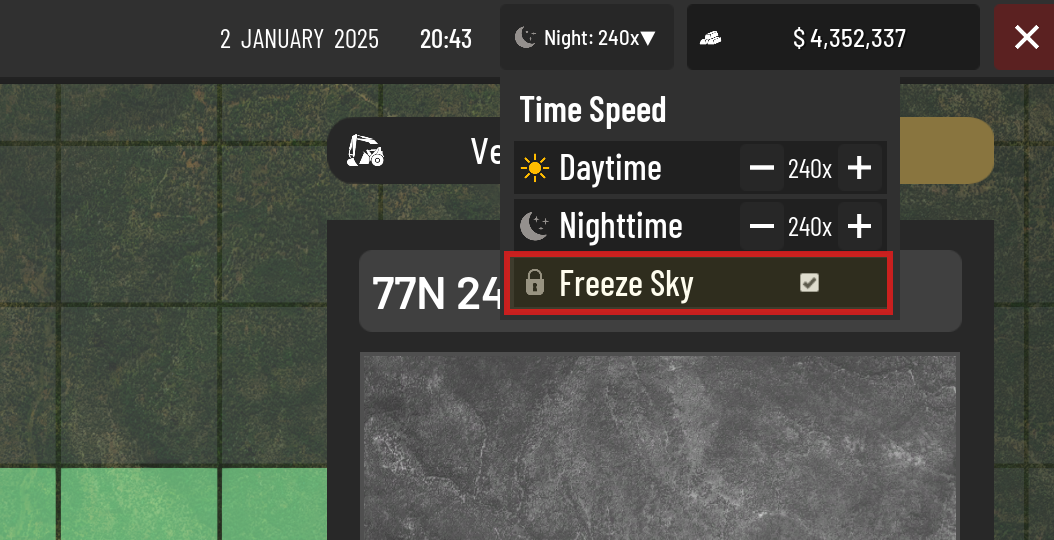
Freeze Sky option: Lets you pause they sky while game clock still runs
Auto Level
Keeping your blade level has not always been an easy task, especially when working across larger areas. Auto Level is intended to help with this by automatically keeping your blade or bucket at a selected working height.
For this first version, Auto Level is keeping things simple and works with a flat horizontal level. It will help keep your blade or bucket at the height you have set, but tilted or sloped levels are not supported yet.
This is our first step with Auto Level, and we would like to build further on the system as development continues.
Auto Level is currently available only for loaders, dozers and graders.
NOTE:
The DX100A Dozer and L8000/L10000 loaders do not support Auto Level as these are older machines.
How to get started
To use Auto Level, you first need to purchase the Auto Level GPS from the store under:
Equipment → GPS → Auto Level Receiver
Once purchased, equip the GPS in one of the vehicle's light slots.
If the vehicle does not currently support Auto Level, a message will be shown in the Vehicle Inventory.

Controls
You can find the Auto Level controls under:
Settings → Controls → Vehicle
Scroll down towards the bottom of the Vehicle controls.
Activate Auto Level
Activates or deactivates Auto Level. When active, the blade or bucket will automatically move towards the selected working height.
Set Height
Sets the current blade or bucket height as your target height and activates Auto Level.
Height Offset Increase
Raises the working height by 15 cm with each press.
Height Offset Decrease
Lowers the working height by 15 cm with each press.
The offset can also be adjusted while Auto Level is active.

Setting the height manually
You can also enter a target height manually.
While sitting in the vehicle, open the Vehicle Inventory (I). At the top you will find the Set Auto Level Target input.
Enter the height you want to use. You can press Enter or simply close the inventory and the target will update automatically.
The height is displayed in centimeters.
Height Offset
The Height Offset allows you to make smaller adjustments without entering a completely new target height.
Each step changes the working height by 15 cm.
For example, if your target is set to 13,300 cm and you add an offset of +30 cm, Auto Level will work 30 cm above the original target.
Your current offset is shown on the Auto Level display.
On Target
The On Target indicator helps you see when the blade or bucket has reached the selected working height.
Once the blade or bucket is level with the target, On Target will turn green.
The Diff value shows how far the blade or bucket currently is from the selected working height in centimeters.
Auto Mode
Once your height is set and Auto Level is active, the blade or bucket will automatically follow the selected working height.
Auto Level will disengage if you manually lift the blade or bucket. It can also disengage when the machine is under a heavy load, for example when a dozer is pushing a large amount of material.
Once disengaged, you will need to activate Auto Level again.
This is intentional so the blade or bucket is not completely locked into position and the machine can still behave naturally while working.
Current
Displays the current height of your blade or bucket. This value becomes available once you activate Auto Level or use the Set Height function.


Manlifts
Manlifts give you an easier way to reach areas that would otherwise be difficult to access.
There are two versions available, wheeled and tracked, giving you a choice depending on where and how you want to use them. Both can be purchased from the store under Vehicles → Lift.
Manlifts can be useful around buildings and mine sites, or when you need to reach difficult areas, such as when placing explosives.
The two available models are:
GLE 450 AJC Tracked
GLE 450AJ Wheeled
Manlifts are primarily designed for operation by a single player. While multiple players can stand on the platform in Multiplayer, this is not yet fully supported and may occasionally result in unexpected physics behavior.
Controls
You can find the Manlift controls under:
Settings → Controls → Lift


Flexible Conveyors
Flexible Conveyors give you more freedom when connecting different parts of your production setup, especially when the input and output points do not quite line up with each other.
They are intended for shorter connections and smaller adjustments between production equipment rather than replacing regular conveyors over longer distances. Flexible Conveyors have a maximum length of 6 meters.
A Flexible Conveyor can be connected starting from either an input or an output side, making it easier to fit into both new and existing production lines.
You can purchase Flexible Conveyors from the store under:
Factory → Conveyors → Flexible Conveyor
Flexible Conveyors can also be painted.


Connecting Flexible Conveyors
Flexible Conveyors are designed to connect between two already placed production elements.
If you remove one of the elements that a Flexible Conveyor is connected to, the Flexible Conveyor will also need to be removed and placed again once your production equipment is back in position.
Currently, you cannot place a production element and snap it back onto an already placed Flexible Conveyor.

Freeze Sky
We've added a new Freeze Sky option to the time multiplier menu, located in the in-game OS menu accessible through the Inventory, Store, or Map.
This feature allows you to freeze the current time of day and weather, while the game time continues running at your selected speed.
For example, if you prefer playing during daylight but want to speed up the recovery of ore prices, you can increase the time multiplier and enable Freeze Sky. This allows the economy to continue progressing, including ore price recovery and bank loan interest deductions, without changing the time of day or weather.
With this addition, we've also removed the 0x and 0.5x time multiplier options, making 1x the new minimum. Freeze Sky allows players to maintain their preferred daylight and weather conditions while the in-game clock and economy continue running normally.

Changes & Improvements
Added new Manlifts
New Auto Level function ( Auto Level GPS for Dozers, Loaders & Graders)
New Flexible Conveyors
Significantly improved game saving times
Added a Freeze Sky option to pause the day/night cycle while the in-game clock continues running
Fixed characters not standing correctly on moving vehicles
Fixed big dual hopper top part being different color
Added a hint when player does not have enough material to place ore on the ground
Added display hint when the player tries to place building elements on land they do not own
Mossy rocks can now be destroyed using a pickaxe
Fixed an issue where the engine won't stop properly after the player leaves the vehicle
Removed a pre-placed ramp far from start area on Coal Country map
Improved vehicle physics, animation and hydraulics performance
Improved voxel foliage save loading performance when moving around
Improved vehicle collision update behavior
Fixed joining clients seeing 00:00 when connecting to a paused multiplayer session
Fixed falling dirt sound effects continuing to play after exiting a vehicle
Improved bank input to accept numeric values only and prevent negative or oversized values
Added Gold ore to Metal Ore Sorter as output
Fixed the compactor roller's drum rotating faster than the vehicle was moving
Fixed issue where hand tools (axe, shovel, fast shovel) were missing effect sounds when used
Fixed issue where GPS horizontal tilt was mirrored and improved GPS angle display
Fixed issues with sounds and high/low gear speed differences on some larger excavators
Fixed issue where multiple players on manlift platform was causing vehicle to fall over when swinging the boom arm
Removed Platinum ore from ore price menu
Fixed issue where Chariton FX4000FS boom arm being slow with full bucket
Fixed issue where client couldn't pass through metal doors
Adjusted loader bucket angle when on the ground where it struggles to steer and push material
Fixed issue where vehicles had wear and dirt inside the cabins
Fixed issue with conveyors/factory elements sound and smoke effects
Changed pricing on Coils and Sheets to be profitable
Reduced material flickering on flat terrain
Fixed loan interest calculations. Interest is now deducted every in-game hour at the correct rate
Increased the fuel truck's refueling range for baggers
Fixed overlapping text in Mine Office wall screen
Added countdown and screen notification to clients when terraforming is locked and game is auto saving
Fixed issue with Borderless screen setting (its now locked on max resolution and locks resolution edit)
Fixed reduced dozer speed when operating on slopes
Fixed GLS 450Aj shop description
Fixed economy dashboard issue where numbers went negative
Fixed Chariton EX500D B140 stair not folding when entering the vehicle
Fixed some on-screen keybind hints appearing blank
Fixed issue where Attachment menu stayed on screen when opening shop, map or inventory
Fixed issues with rain visuals and animations
How to report a bug/issue?
When sending in bug reports, it is a huge help if you can describe the issue in as much detail as possible.
Useful information includes:
Your game version, which can be found on the main menu (for example, V0.35.5511)
What happened
What appears to cause the issue
Steps we can follow to reproduce it
If the issue involves a vehicle, which vehicle(s) are affected
If the game crashes, please include the crash report
Your Discord/Steam name or email address so we can reach out if additional information is needed
You can find the bug report link in the game menu or use the Bug Report Link.
How to find savegames and crash reports
Savegames:
%localappdata%\\OutOfOre\\Saved\\SaveGames
Crash reports:
%localappdata%\\OutOfOre\\Saved\\Crashes
Note:
Copy the path above and paste it directly into the File Explorer address bar or the Windows search box.
If you're unsure about %localappdata%, you can also find these files by navigating to:
C:\\Users\\YourUsername\\AppData\\Local\\OutOfOre\\Saved\\
 We would also like to thank everyone who continues to send us bug reports, suggestions and feedback!
Since introducing our new reporting system, it has already been a great help to us when reviewing and working through reported issues.
One of the biggest improvements is that we can now communicate directly with players, ask follow up questions when we need more information, and keep you updated on the progress of your reports.
This has made it much easier for us to understand certain issues and work together with players to find out what is happening. We hope you have also found the new system easier and more useful when submitting reports.
As always, we encourage everyone to keep sharing their experiences, suggestions and ideas. Not every issue can be addressed immediately, but your feedback continues to play an important part in the development of Out of Ore.
You can submit reports, crashes and suggestions through the in game menu or directly through our Player Help Center.

With V0.36 now available on the Main Branch, we'd also like to share a glimpse of what we're working towards for the next Beta (0.37). These are some of the additions and improvements currently in development, although plans and priorities may change along the way.
Mobile Sorters and Conveyors: More options for handling and processing materials directly at your mining sites.
Drilling Machinery: We're working towards introducing additional drilling equipment to expand mining operations.
Building System Improvements: Improvements to the placement and connection of building elements, with the goal of making construction more flexible and intuitive.