New Editor, Who Dis?
We just released our sparkling, brand new level editor in beta! Our level designers, Skye and Skeelie just did a stream where they walk through the editor, and answer some questions about charting for Rift, so give it a look!
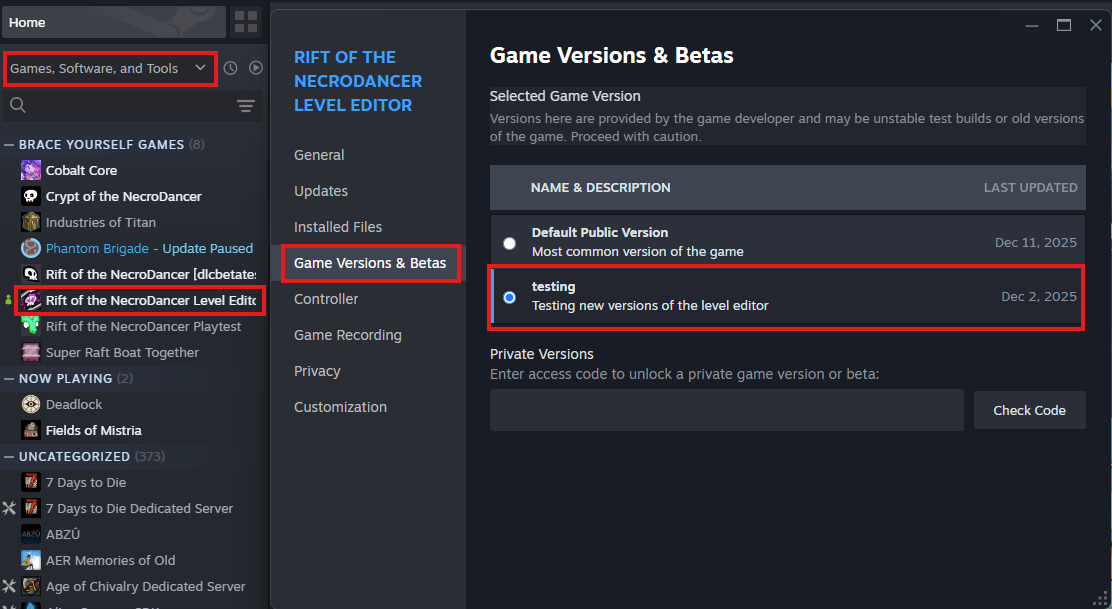
To access the new editor, follow these steps:
Ensure "Tools" is checked in the dropdown at the top of your library list if you don't see Rift of the NecroDancer Level Editor in your library.
Right click on the Level Editor and select "Properties"
Navigate to Game Versions & Betas
Select the "testing" version of the game.
Update and launch!
Rifted (Level Editor) Patch Notes
v4.2.1-b5832
Separate layers for enemies, traps and special objects
When editing a particular layer, objects from other layers are faded out and non-interactable
This helps level designers keep track of where all objects are in particularly dense sections of a song
Option to disable layers for creators who prefer to switch between enemies and traps more seamlessly
New Cursor Tool for selecting, moving and configuring objects
Pick individual objects by clicking on them
Select multiple objects at once by clicking into an empty area of the chart and dragging a selection box
Click and drag "Gizmos" on selected objects to configure values like Wyrm length, Trap duration, Blademaster lunge distance and more
Edit multiple objects at once by multi-selecting and dragging the objects themselves or their Gizmo handles
Object list side panel for easily selecting individual objects in dense sections
Selection and scrolling is synchronized with the main editor panel
Exact beat numbers are displayed for each object
Hovering over an object in the side panel highlights it in the editor and vice versa
Minimap side panel for quick navigation
Displays a color-coded overview of the placement of enemies across the whole beatmap
Highlights the current viewport region, as well as any vibe chains placed throughout the track
Click on any position on the minimap to quickly jump to the corresponding location in the song
Hit tally counter
Shows the total number of regular hits, healing item hits and vibe chains throughout the whole beatmap
Improved placement previews
The editor now indicates enemy placement much more accurately when hovering with the Pen tool, taking traps and sideways movement into account
Simplified subdivision handling
The subdivision mode now only affects grid snapping in the editor without any gameplay effects
Certain enemies (such as Armadillos) no longer behave incorrectly when a low subdivision value was selected when saving a track
Hits-only view
Always displays the effective hit timings for all monsters, allowing the song's full input sequence to be viewed regardless of scroll position
Split-screen support
Subdivide the editor view into multiple horizontal/vertical panels to edit different parts of the song at the same time
Panels can be resized freely and can each have their own settings for placement and subdivision
Automatic audio format conversion when importing MP3 files
No more audio drift if you forget to convert to OGG beforehand!
Improved exit handling
Save confirmation dialog when closing the editor with unsaved changes
The editor no longer stomps parts of your levels upon quitting and reopening it
Extended mod support
Nearly every aspect of the editor can now be affected by mods, allowing for significantly more powerful tools for level design
High-resolution waveform
The waveform shown alongside the song now uses a much higher resolution, allowing fine details to be seen more clearly
Simplified hit sounds
You can now replace all enemy-specific hit sounds with a short "clap" noise to more easily hear the song's rhythm while charting
All editor sounds can be customized and replaced via Resource Packs
Better seeking during playback
Scrolling during preview playback now seeks the audio in sync with the song's scroll offset, allowing sections of the song to be repeatedly listened to much more rapidly without having to restart playback several times
Graphical tools for adjusting BPM and playback offset time
Switch to specialized tool modes, then drag the waveform to rapidly make adjustments to the level's tempo and synchronization