We ask for your patience while we conduct a thorough investigation.
We recommend that you try the following workaround as a temporary solution.
This workaround is not necessary if you are not experiencing these issues.
Instructions
For those using a graphics card made by NVIDIA®
We recommend that you follow these steps below.
The screen configuration, etc. may be different depending on the which version you have installed.
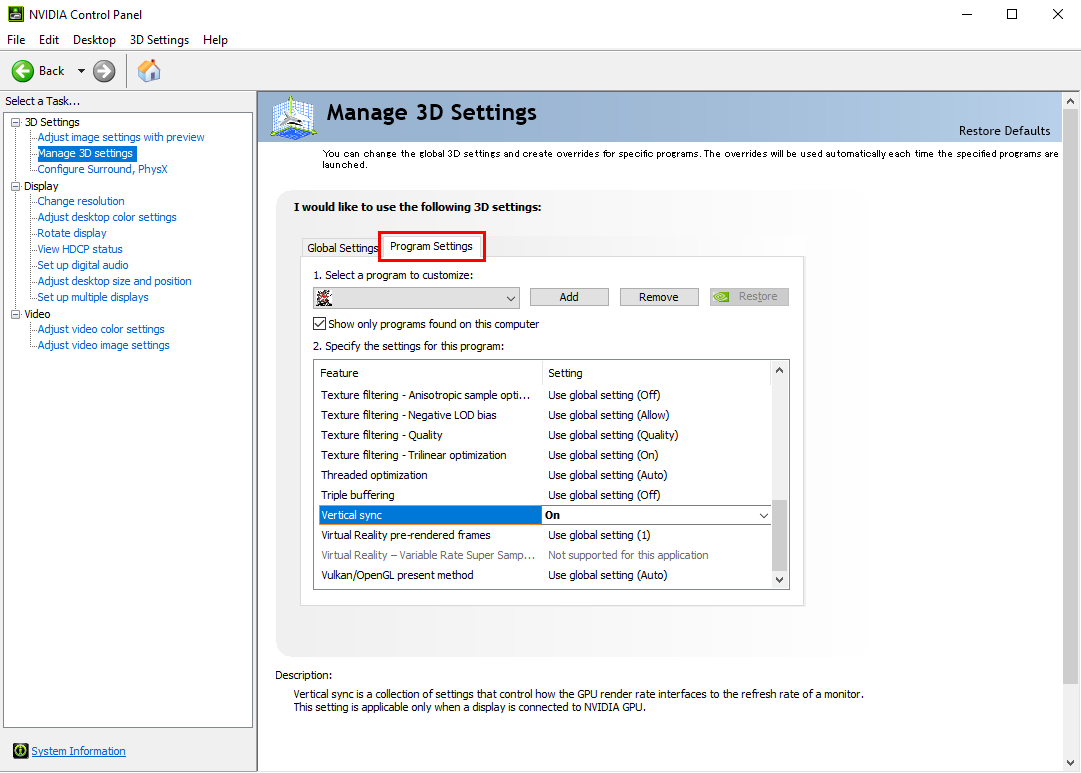
- Open the “NVIDIA Control Panel”, then select the “Manage 3D settings” located on the left-side of the window.
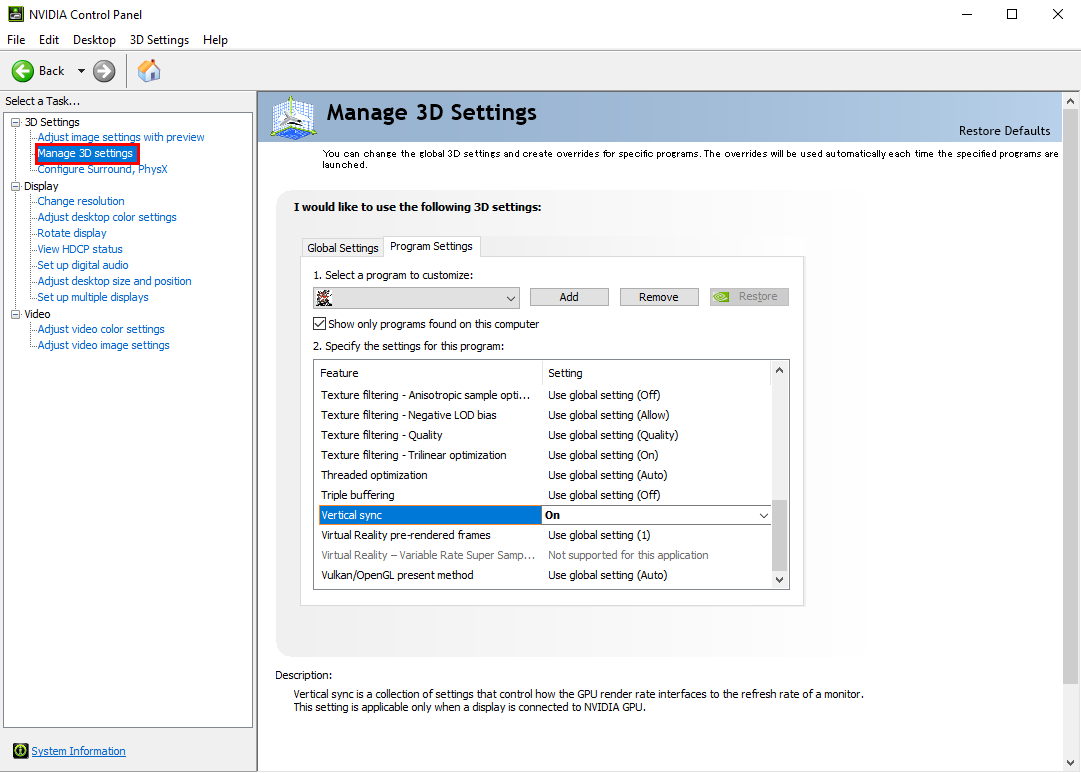
- Select the “Program Settings” tab.
- In the “1. Select a program to customize:” section click on the “Add” button, then go to the folder where you have “METAL GEAR & METAL GEAR 2: Solid Snake” installed and select “METAL GEAR.exe”.
Once selected, make sure that the file location is displayed on the right-side of the “Add” button.
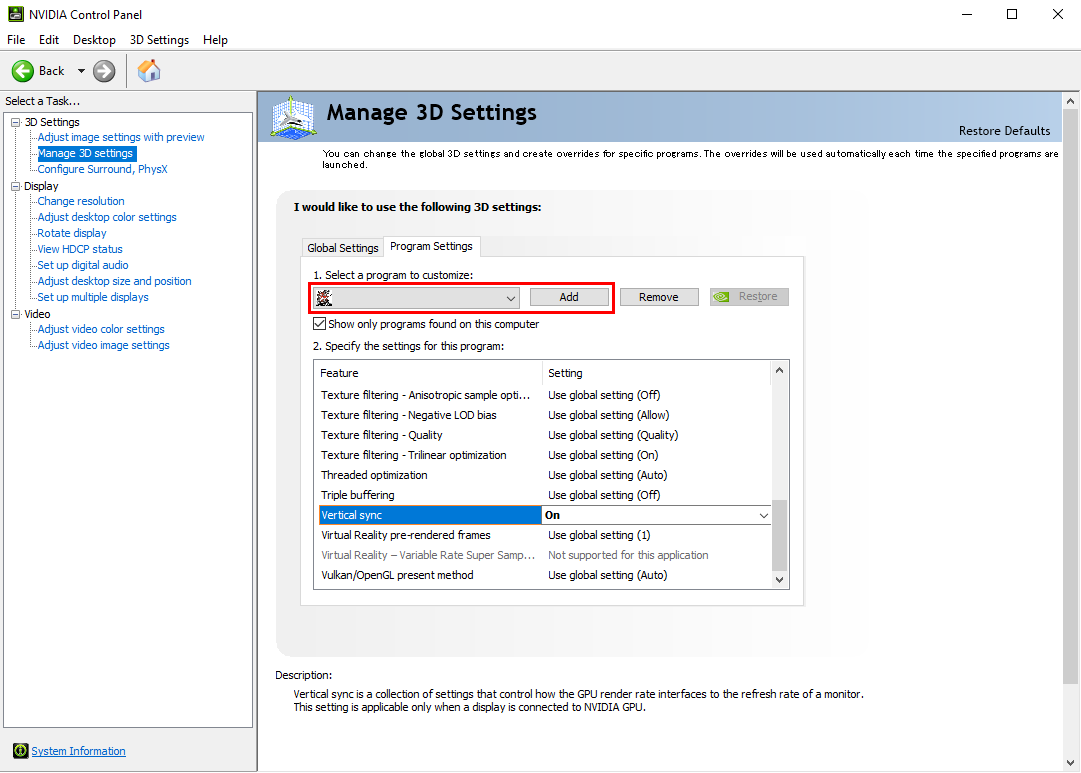
*The screenshots in this instuctions were all captured using the METAL GEAR SOLID - Master Collection Version.
The game title and icon that should display as you follow these instructions is "METAL GEAR & METAL GEAR 2: Solid Snake".
We will replace them with the correct screenshots at a later date.
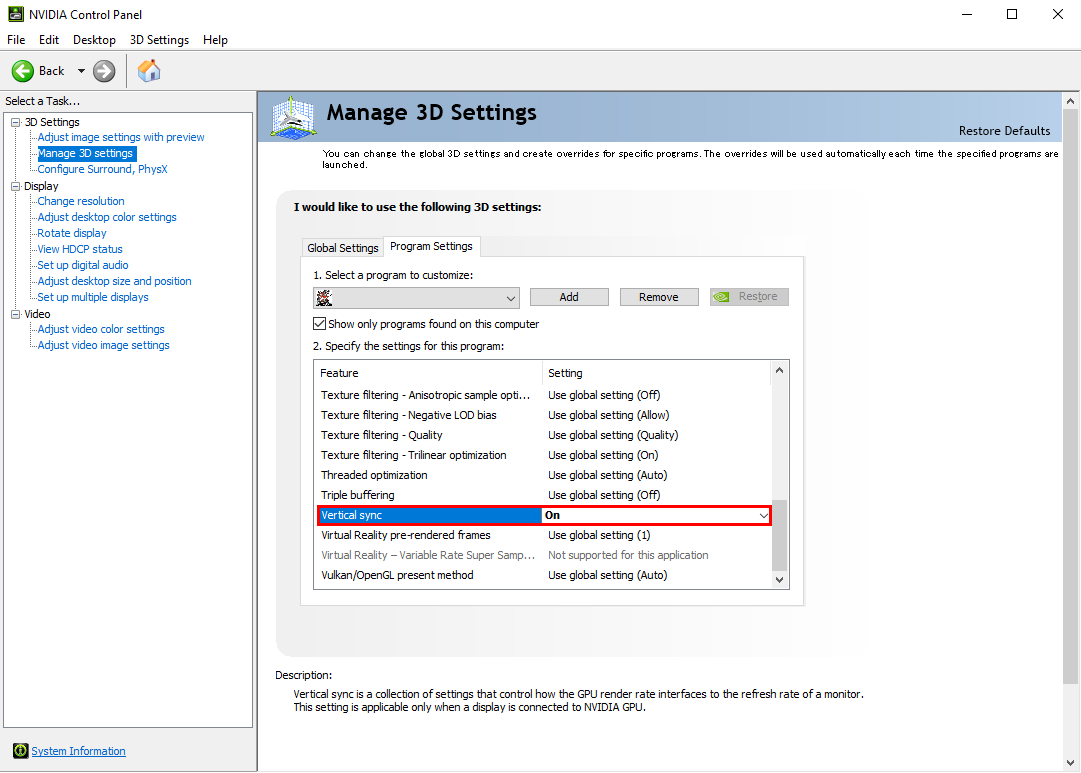
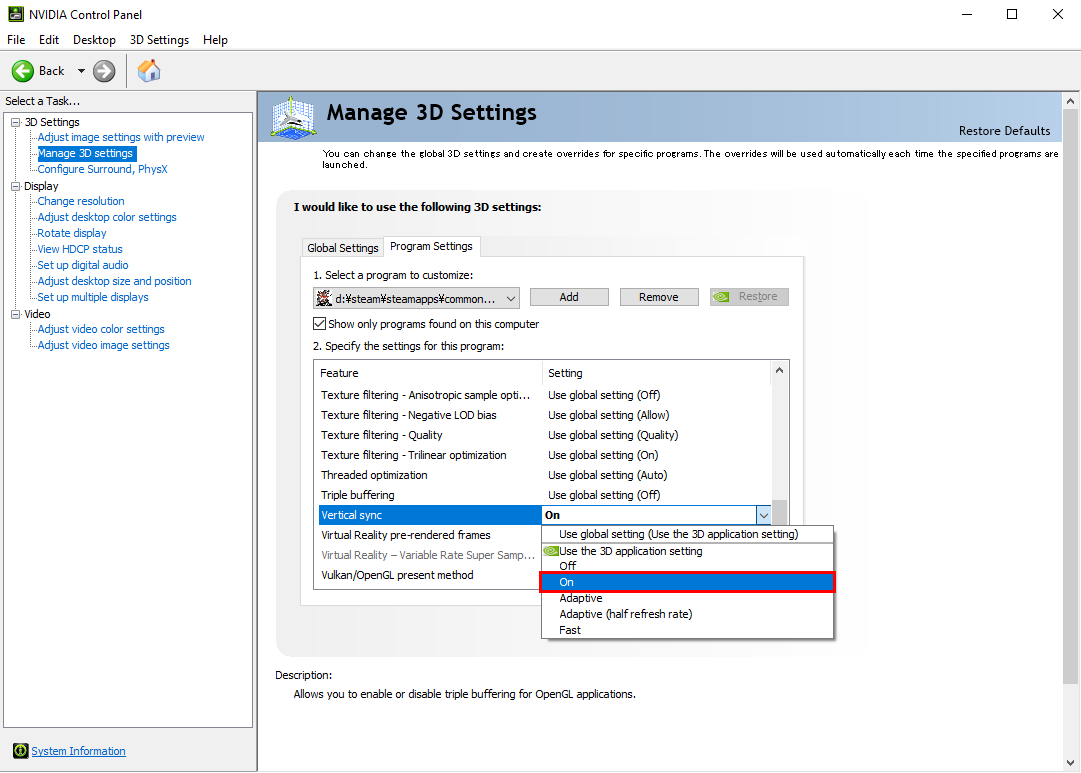
- In the “2. Specify the settings for this program:” section, make sure that the “Vertical sync” is turned on.
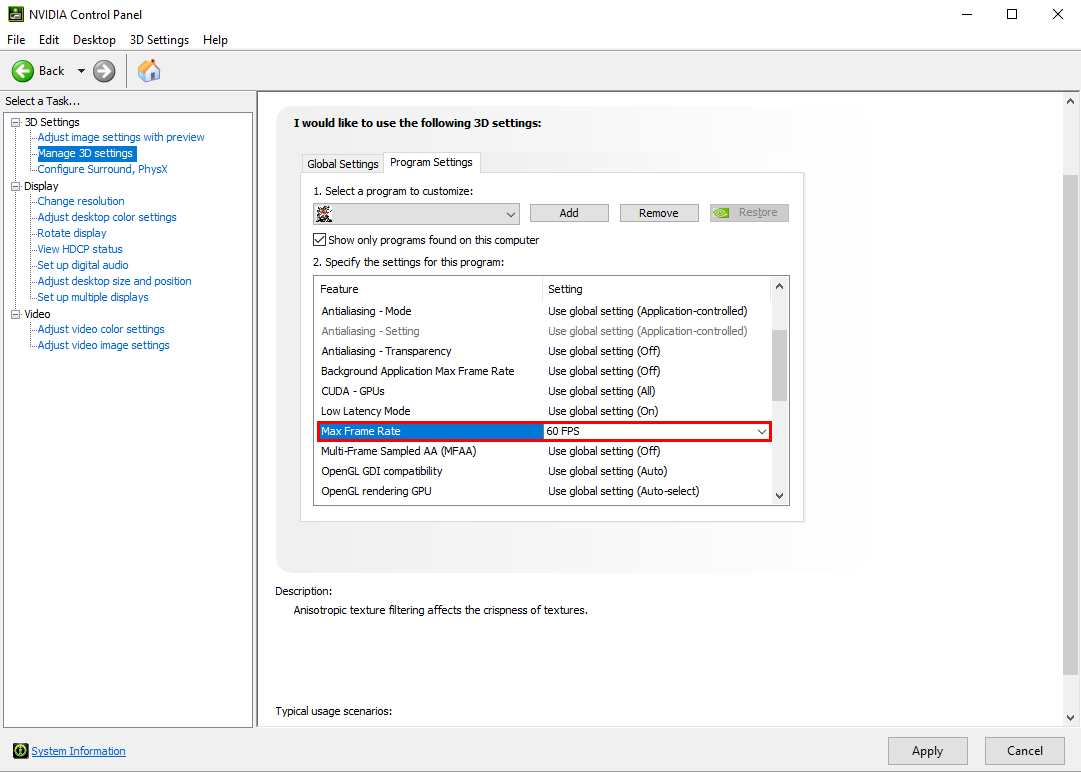
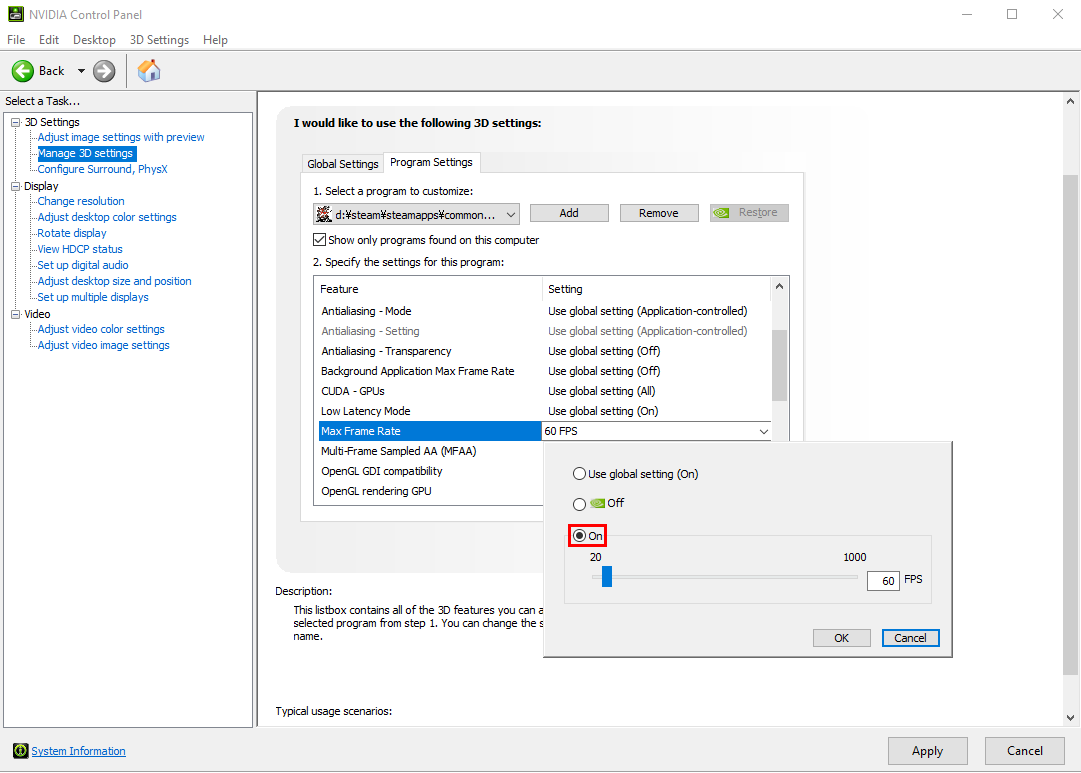
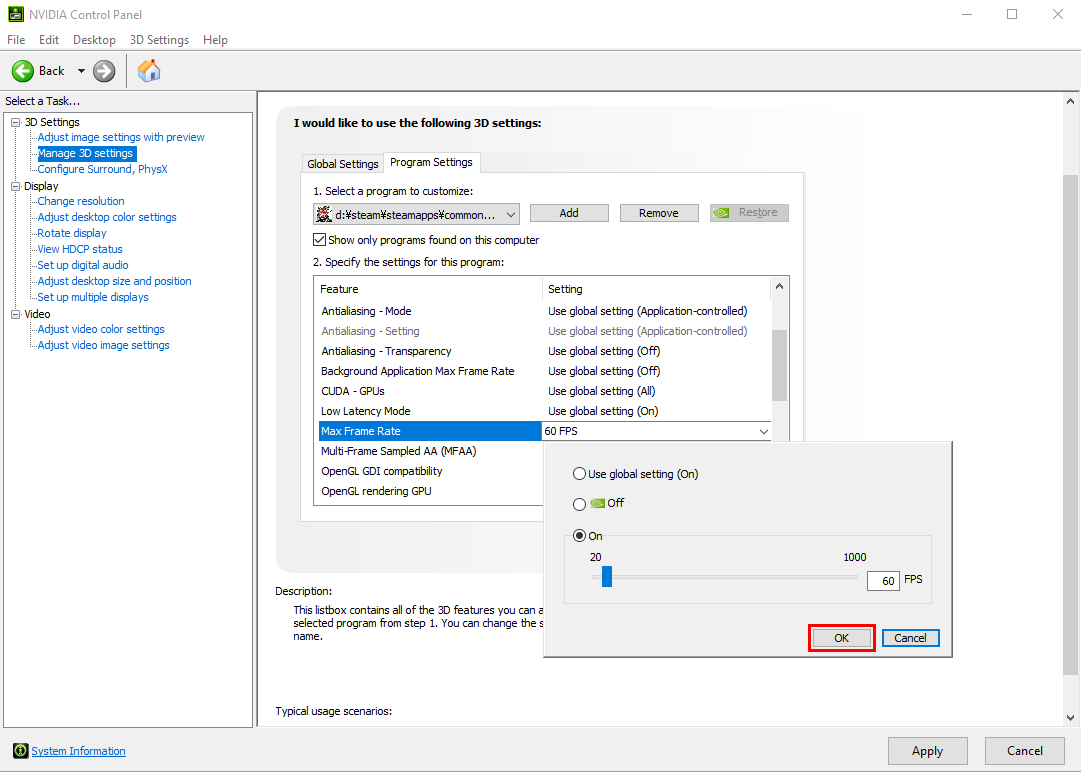
- In the “2. Specify the settings for this program:” section, make sure that the “Max Frame Rate” is at 60FPS.

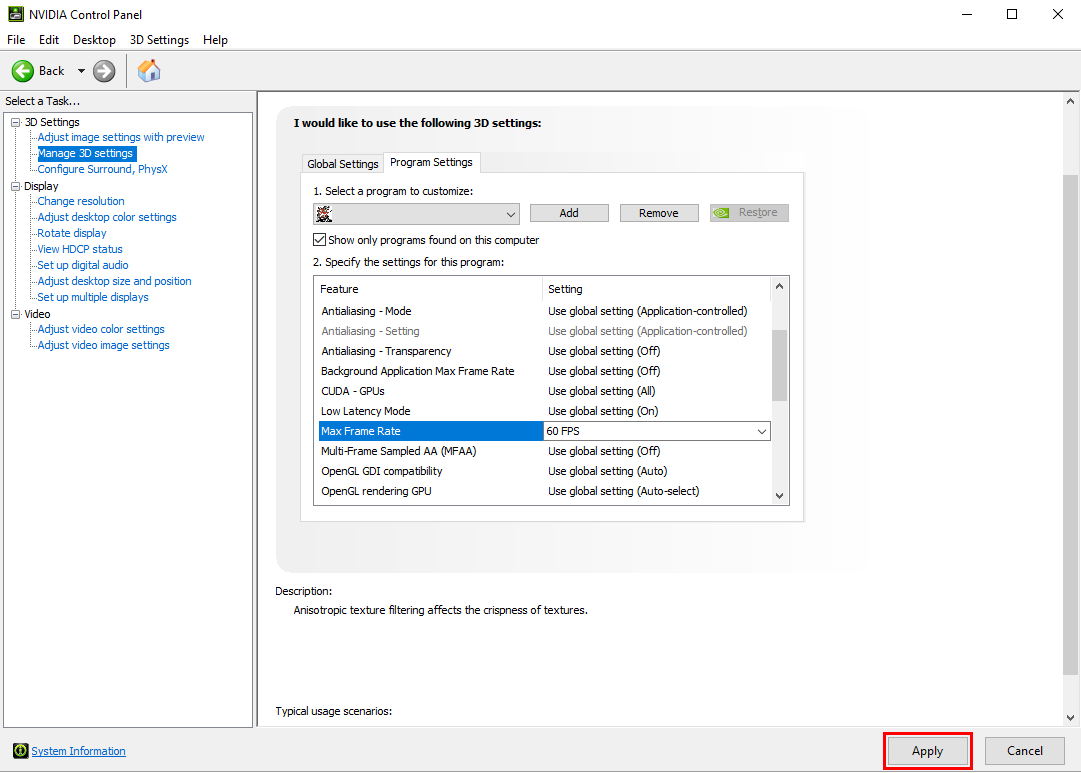
- Click the “Apply” button.
- In the “1. Select a program to customize:” section click on the “Add” button, then go to the folder where you have “METAL GEAR & METAL GEAR 2: Solid Snake” installed and select “launcher.exe.exe”.
- Follow the same instructions from Step 4.
For those using a graphics card made by AMD
- Launch the “AMD Software” that you have installed.
- In the “Gaming” tab, select “METAL GEAR & METAL GEAR 2: Solid Snake”.
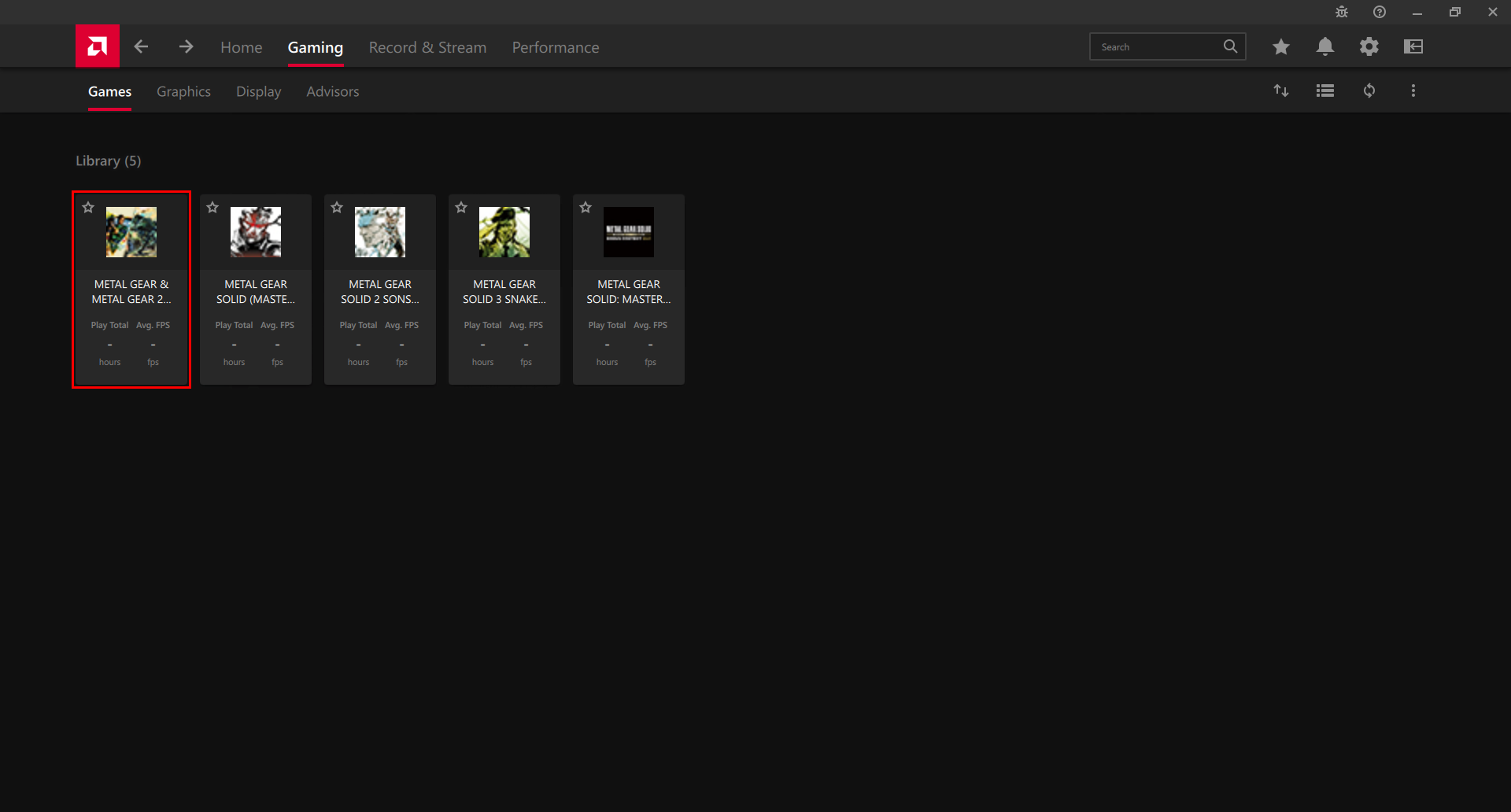
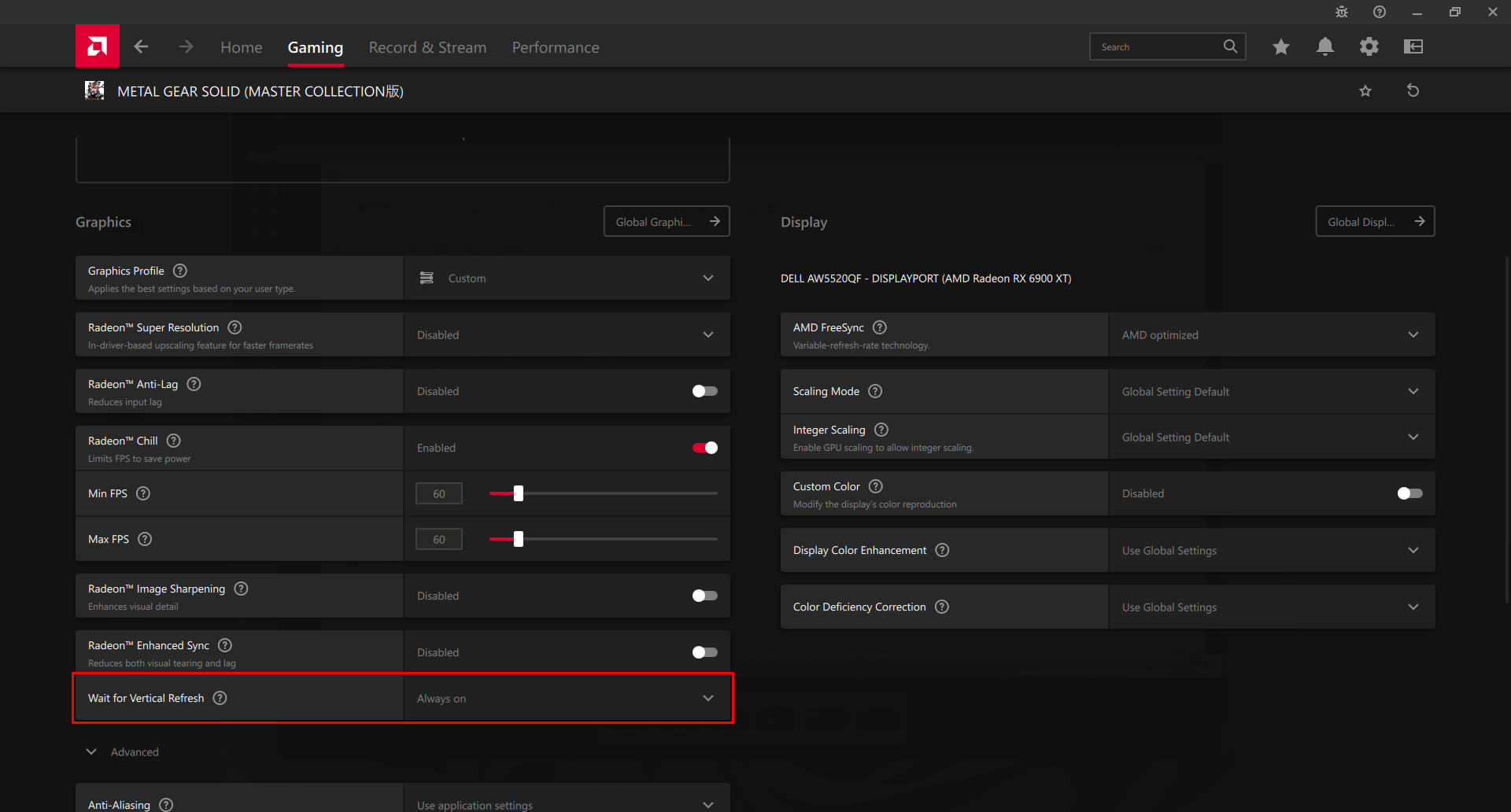
- Make sure that the “Radeon™ Chill” is turned on, with the Min FPS and Max FPS set to 60.
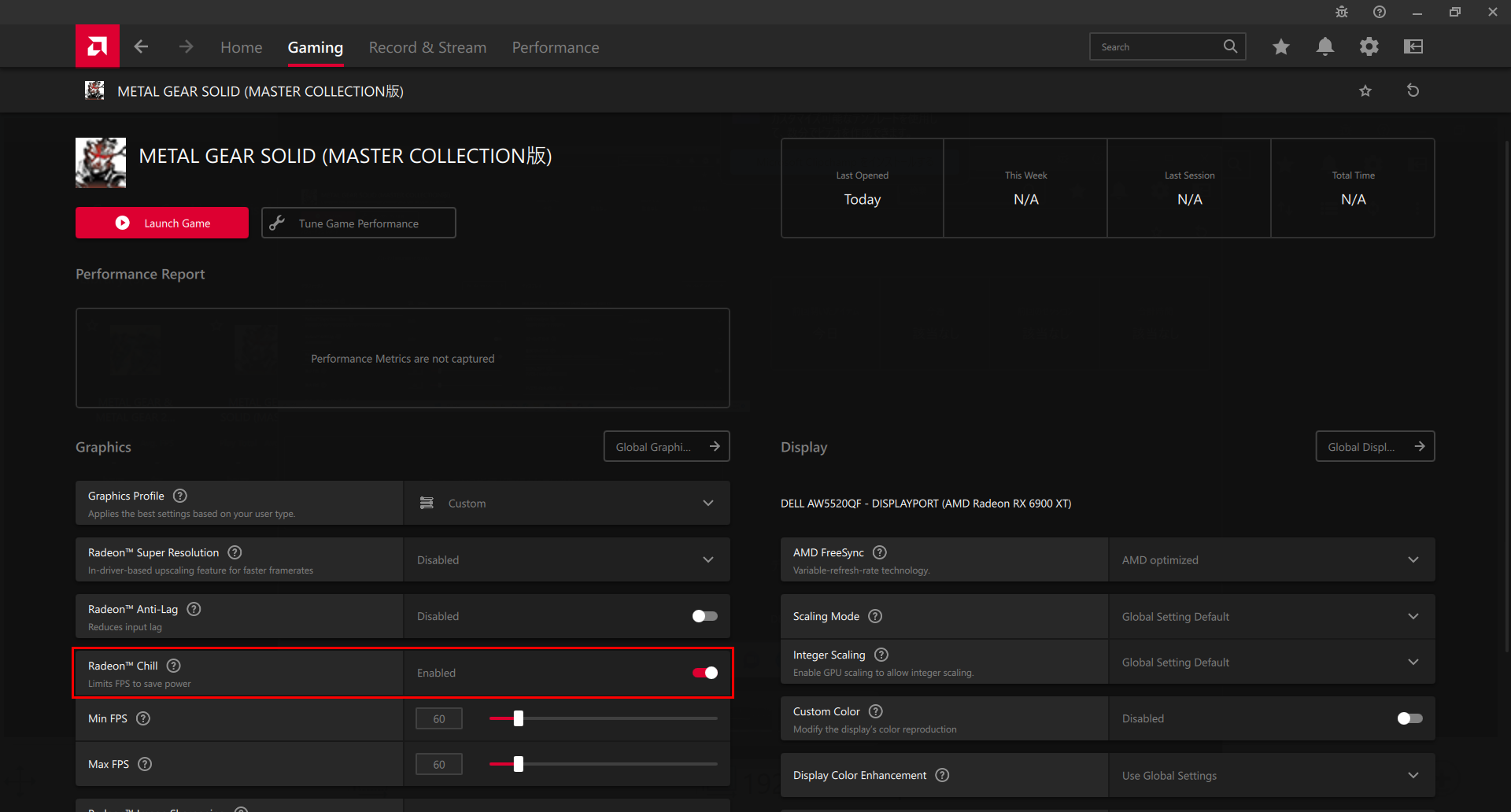
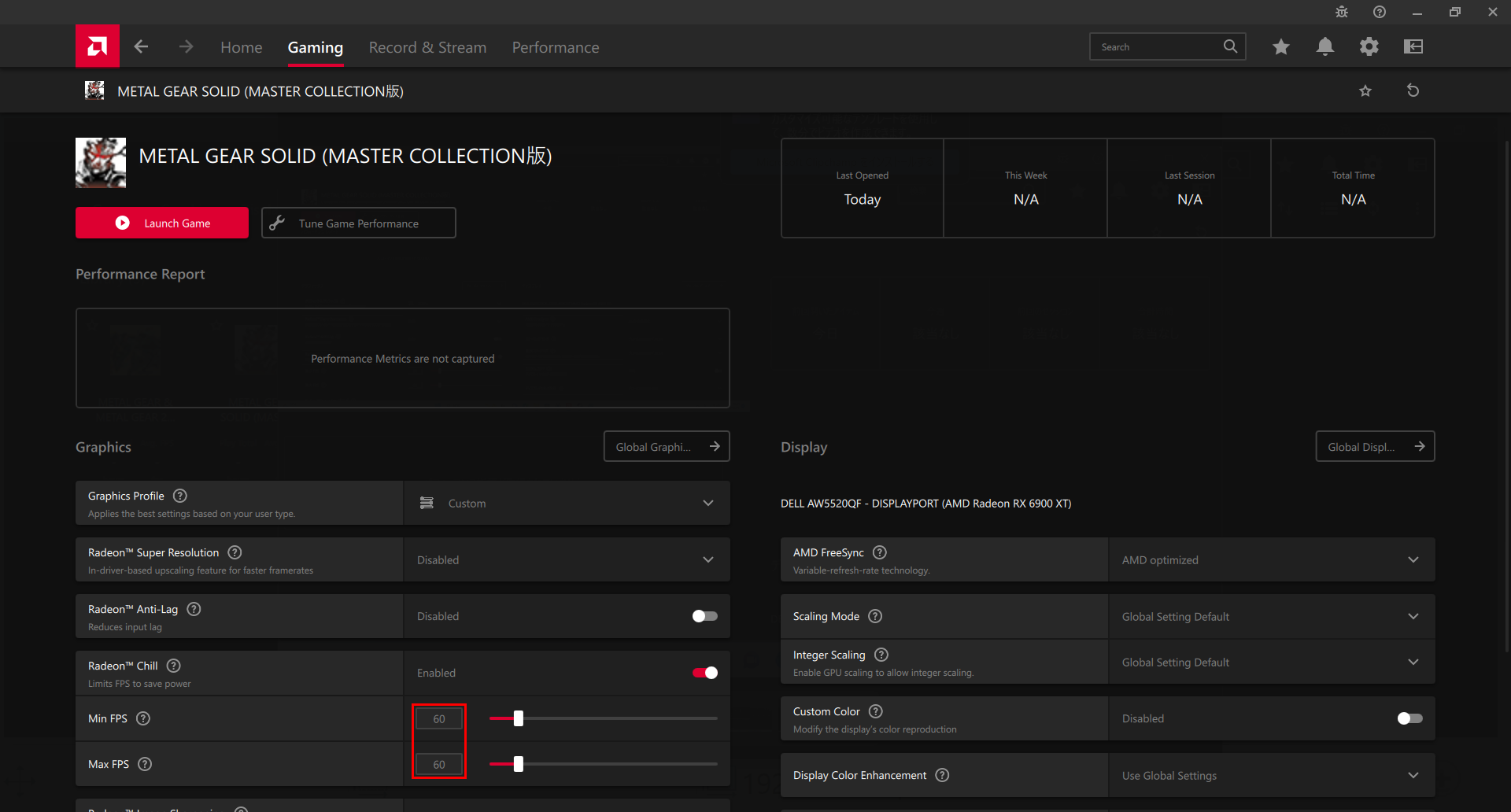
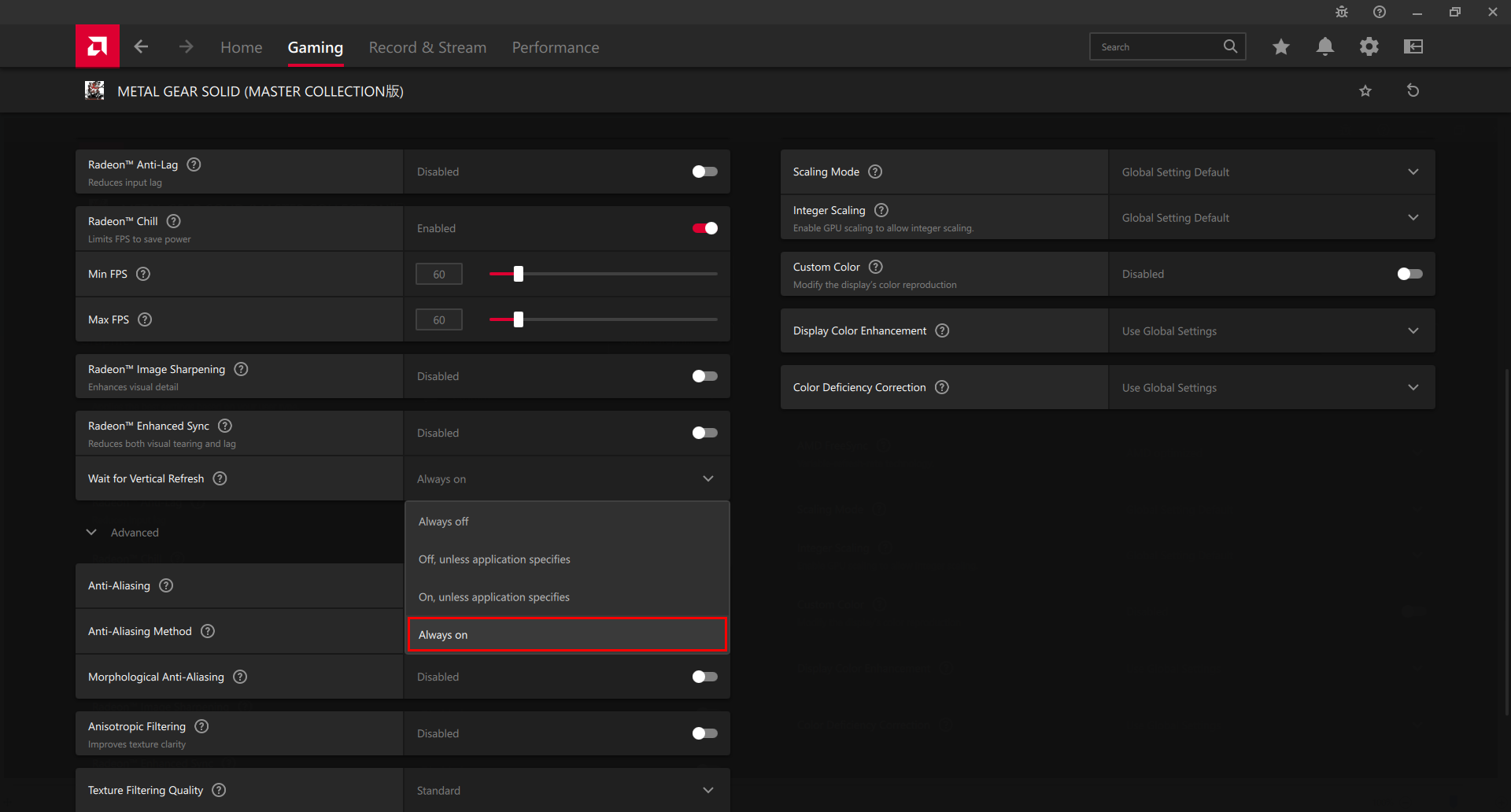
*The screenshots in this instuctions were all captured using the METAL GEAR SOLID - Master Collection Version.
The game title and icon that should display as you follow these instructions is "METAL GEAR & METAL GEAR 2: Solid Snake".
We will replace them with the correct screenshots at a later date.
- Make sure that the “Wait for Vertical Refresh” is set to Always on.