SVFI Open Beta Release
Compared to the stable release, the current open beta includes:
- [Pro Version] Real-time super-resolution and frame generation for various windows (players, web pages, games)
- [Pro Version] Turbo Mode support for non-NVIDIA GPUs, based on DirectML backend, compatible with .onnx super-resolution models under the TensorRT category, as well as RIFE models
Instructions for real-time super-resolution and frame generation:
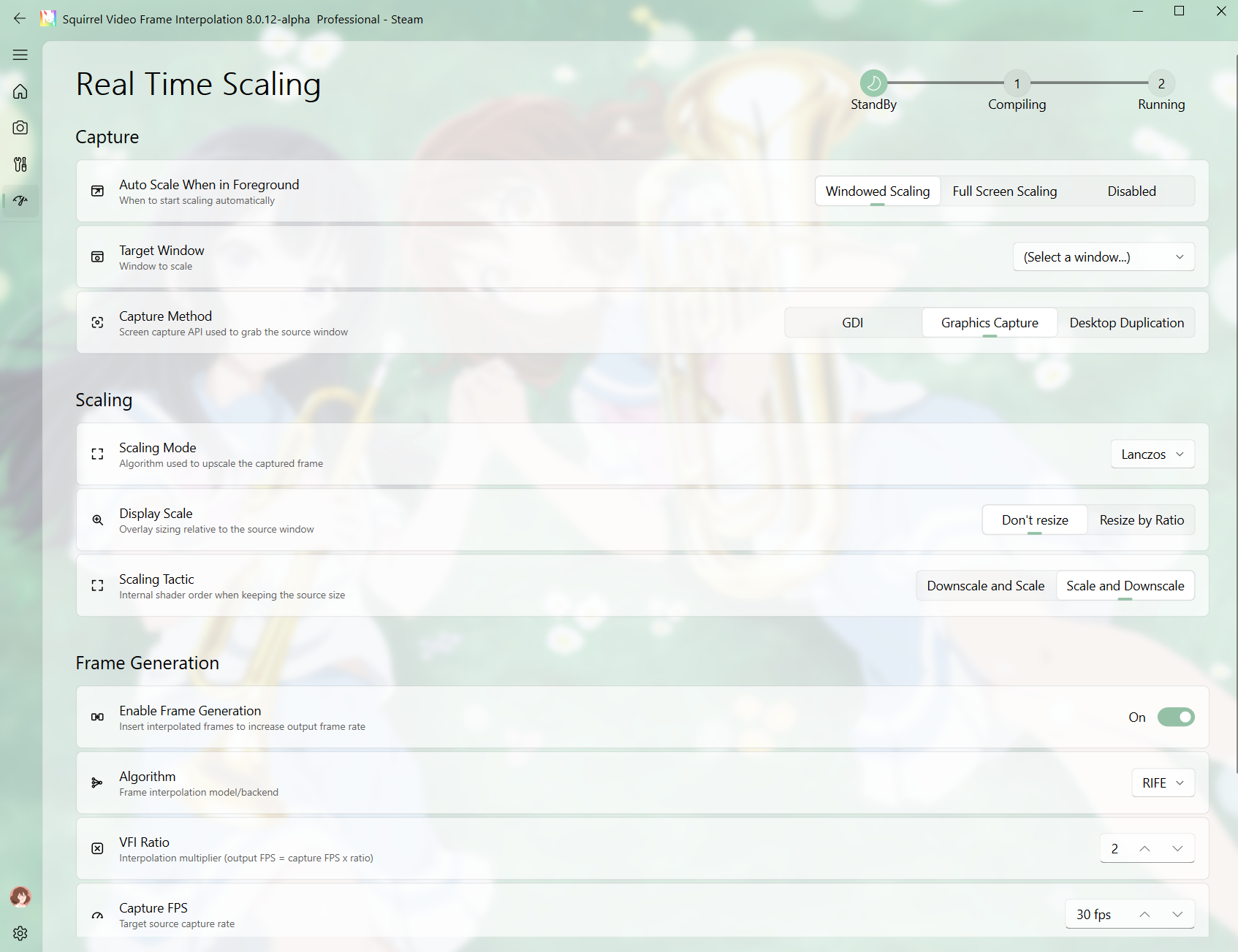
- To apply VFI or super-resolution to any window, first change "Auto Scale" in the Capture section from "Off" to "Windowed Scaling" or "Fullscreen Scaling"
- Select the target window, e.g., a browser or media player. Scaling of Browsers currently do not support DRM-protected content. Scaling full-window games (such as Zenless Zone Zero) is not supported either.
- Set capture method to default "Graphics Capture". If stuttering occurs, try switching to "GDI".
- Set scaling mode to default "Lanczos". For AI super-resolution, select "ONNX" then choose a lightweight 2x super-resolution model from the dropdown (e.g., .onnx models with "SuperUltra" in the name)
- For display strategy, if you want the window size to remain unchanged (e.g., frame generation only), select "Don't resize". Otherwise, select "Resize by Ratio" to enlarge the window proportionally.
- For scaling strategy, when using methods with significant visual changes (e.g., AI super-resolution), it is recommended to keep the default "Scale and Downscale"
- Check "Enable Frame Generation" for smoother window performance
- When using frame generation for the first time, be sure to select the ABME algorithm. It is recommended to match the capture framerate with the playback/game framerate — e.g., 24 FPS for anime, minimum 60 FPS for games with locked framerates. By configuring different combinations of frame generation multipliers and capture framerates, you can achieve various target framerates. Ideally, set it to an integer multiple of your monitor's refresh rate for vsync.
- For better frame generation quality, consider selecting RIFE. For AMD GPUs or NVIDIA GPUs where you want to avoid compilation/preprocessing time, set the inference backend to DirectML. For NVIDIA GPUs, you can select TensorRT, but the model will undergo pre-compilation first, requiring a wait of approximately 10–30 minutes (the progress bar at the top will show "Preprocessing"). Once completed, you will see the frame generation overlay window. Note that RIFE models will recompile once at resolutions above 2K. Generally, rife 4.6 and rife 4.8 are recommended. Devices below the RTX 40 series should choose rife 4.6, otherwise performance may suffer.
- upload log/realtime_pyhook.log if the window still can not be scaled at software's internal forum to help us diagnose the problem.
Interested users, please navigate to SVFI library page → Properties → Betas tab, and select "beta" from the dropdown to join the open beta.