First above all, we want to thank you for sharing all your critical feedback with our teams. Ambulance Life is a major milestone for us, and we want it to be just as special for you. We are committed to patching these issues into oblivion.
⚠️An update is coming as soon as it's confirmed and certified, which is most likely late tonight or early tomorrow morning. You will know as soon as we do!
📝 Submitting Feedback
All the tickets you've been submitting to MyNacon has been PIVOTAL in our investigations and solutions for all upcoming. Please continue submitting tickets to the MyNacon support portal.
We are constantly listening, collecting, and triaging your reports for immediate action. Our developers are working around the clock to find solutions.
🛠️ Patch Highlights
- Performance Improvements.
- Multiple collisions, visuals and localization bug fixes.
- Change of the Guidance Widget about the Triage Tags.
- Addition of a score for the application, or not, of life saving measures.
- Patient Protocol now shows only tool, diagnoses, and procedures unlocked by the player.
- Addition of multiple ambient sounds of the city and modification of the UI's sounds.
⚠️In the meantime, and even after this patch update, players may review the below solutions to significantly improve their performance in most cases.
📁 Purging Existing Configuration File
Manually deleting your Ambulance Life configuration settings file will safely allow the game to automatically re-create this file with the recommended settings.
This file can be located here:
C:\Users\NAME\AppData\Local\Sanka\Saved\Config\Windows\GameUserSettings.ini
💾 Installation Location
Ambulance Life must be installed to SSD storage to function properly. Players will see significant performance issues if the game is installed to an HDD.
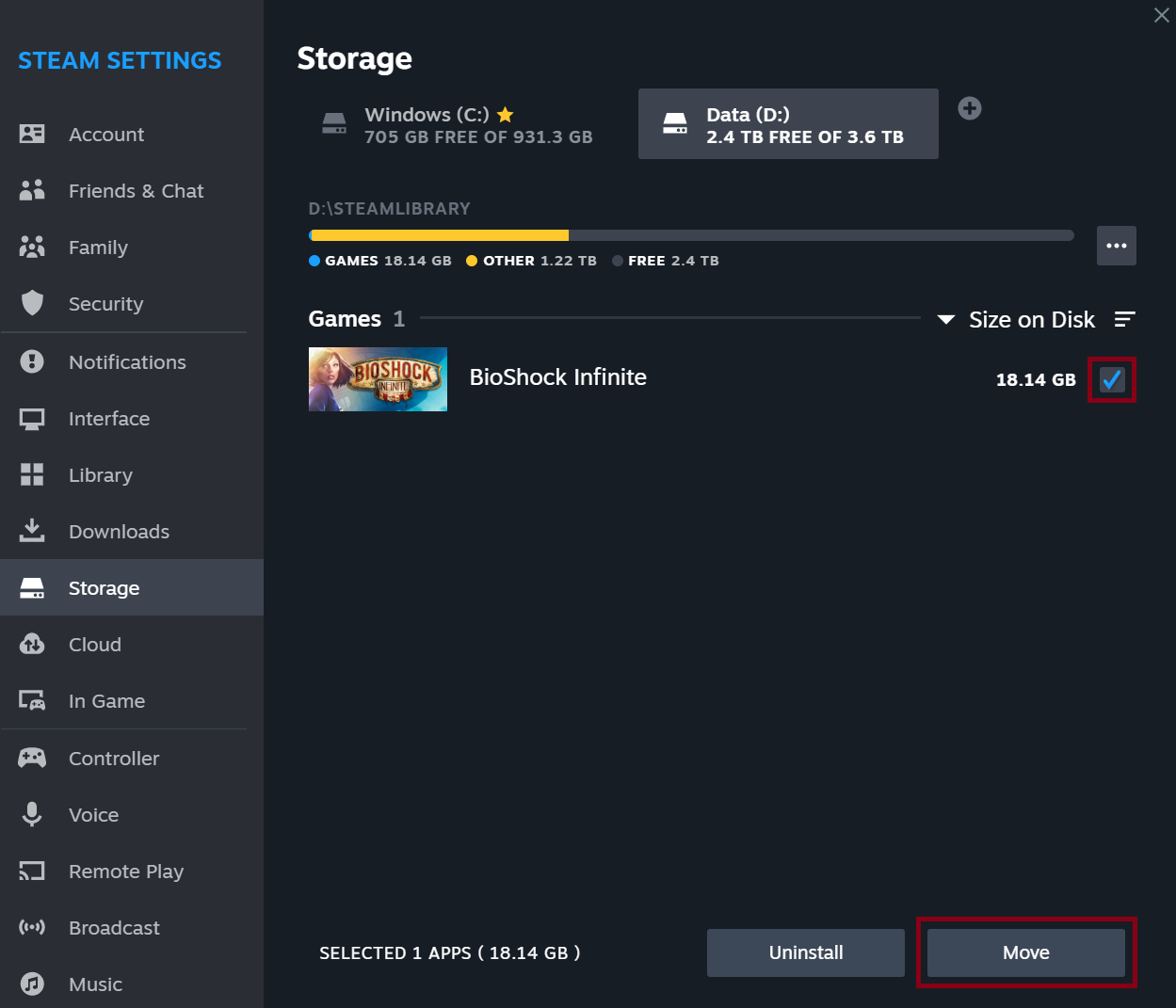
If you have already installed Ambulance Life to an HDD or an external SSD, Steam allows easy migration of your installation files to another drive of your choice!
Games are installed to the following folder by default:
C:\Program Files (x86)\Steam\steamapps\common
How do I move a game's installation folder?
To move a game's installation folder on your computer to a different location on that same computer you can use Steam's "Move" feature. To use this option do the following:
- Make sure you have a different Steam Library path created to move to (see the instructions in how to add a Steam Library folder above)
- Navigate to your Steam client 'Settings' menu.
- Open the 'Storage' tab.
- Select the drive where the games you wish to move are located.
- Select the games you wish to move, and click 'Move'
🖥️ Enable TSR (Temporal Super Resolution)
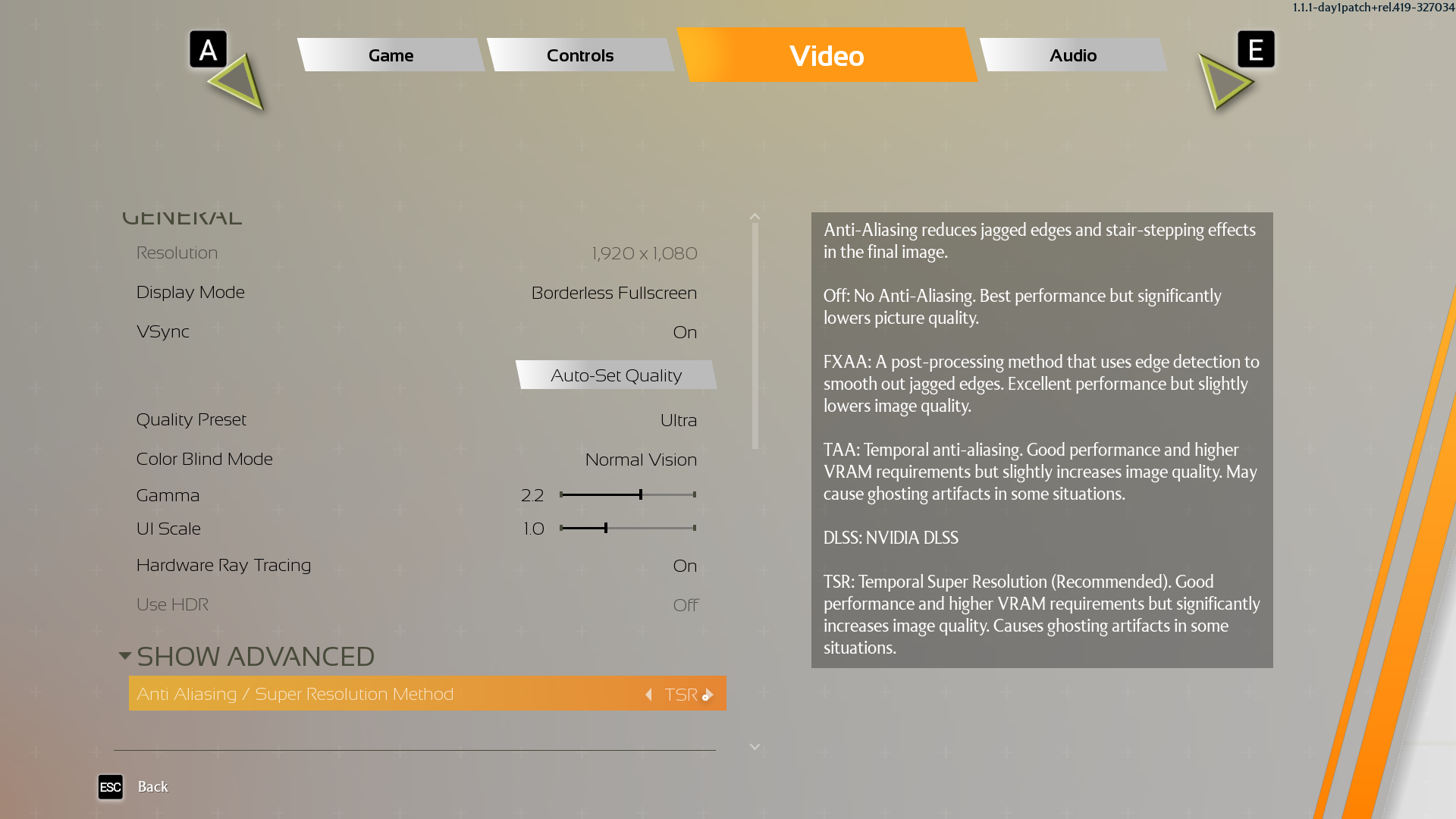
Enabling TSR in the Anti-Aliasing settings can help improve performance.
- Go to "Settings"
- Navigate to the "Video" tab
- Click on "Show Advanced"
- Go to "Anti-Aliasing / Super Resolution Method" and scroll through the options to select "TSR"
🖥️ Reduce Traffic & Pedestrian Density
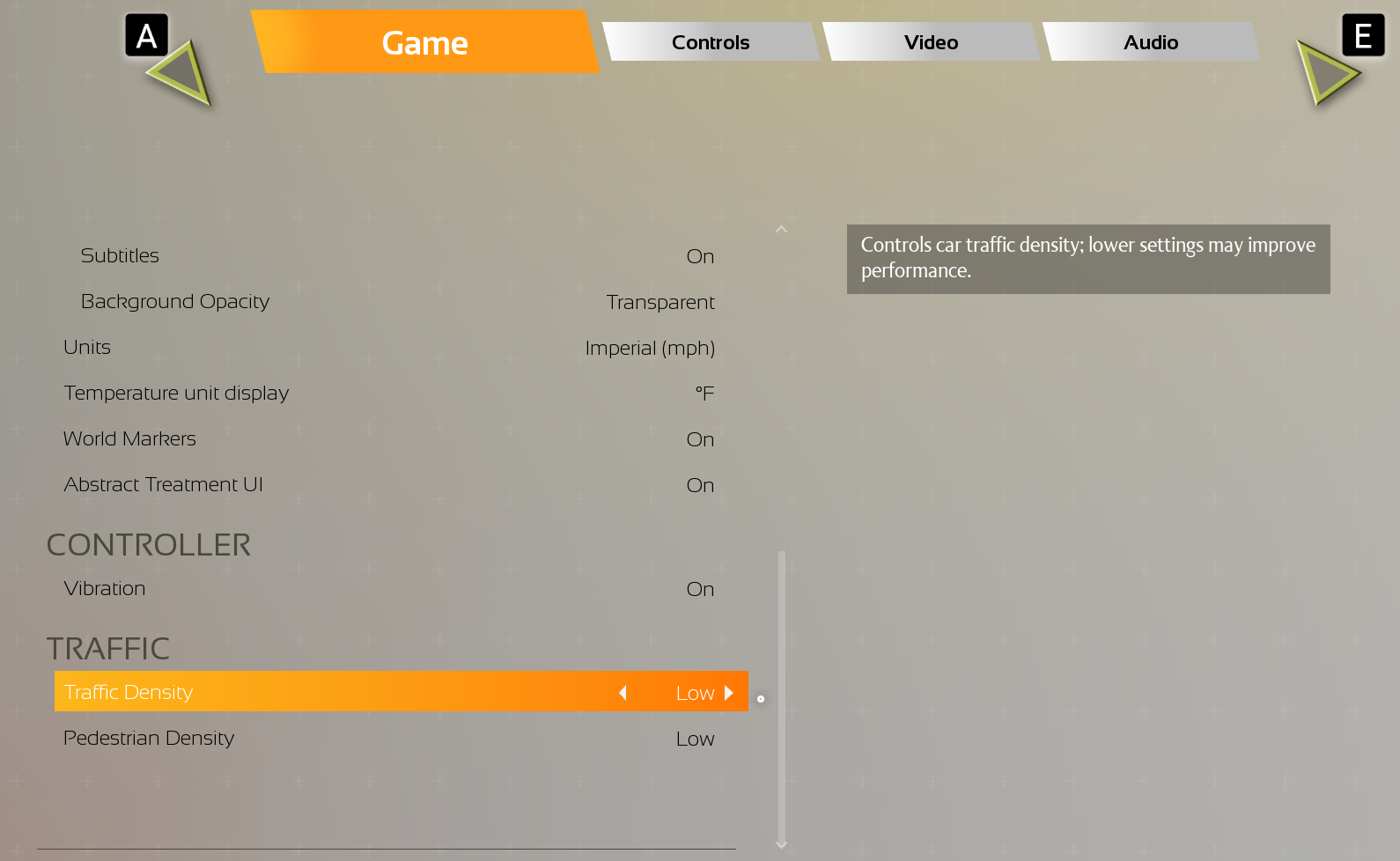
These Density options are heavily CPU intensive, but can also directly affect GPU rendering, as well.
In the settings menu, you can adjust the traffic density in San Pelícano.
While a high traffic density adds to realism, it also requires more processing power.
Lowering it can help improve performance on lower-end systems.
📨 Contact Support
To reiterate, if you are still experiencing issues, please reach out to our support team on the MyNacon support portal with as many details as possible. Your reports help our developers better understand and resolve any problems. ❤️
⚙️ System Configuration Specifications
Make sure your PC meets the minimum, recommended, or optimal system requirements to run the game as smoothly as possible.
🤏Minimum Specifications
- OPERATING SYSTEM: Windows 10
- PROCESSOR: Intel Core i7-8700K or AMD Ryzen 7 1800X
- MEMORY: 16 GB RAM
- GRAPHICS: NVIDIA GeForce GTX 980, 4 GB or AMD Radeon RX 590, 8 GB or Intel Arc A380, 6 GB
- DETAILS: 1080p Low @ 30 FPS w/ TSR @ 66% Resolution Scaling
- STORAGE: SSD Required
👌 Recommended Specifications
- OPERATING SYSTEM: Windows 10
- PROCESSOR: Intel Core i7-12700K or AMD Ryzen 7 5800X
- MEMORY: 16 GB RAM
- GRAPHICS: NVIDIA GeForce RTX 2070 Ti SUPER, 8 GB or AMD Radeon RX 5700 XT, 8 GB or Intel Arc A770, 16 GB
- DETAILS: 1080p High @ 30 FPS w/ TSR @ 71% Resolution Scaling
- STORAGE: SSD Required
💪 Optimum Specifications
- OPERATING SYSTEM: Windows 10
- PROCESSOR: Intel Core i9-14900K or AMD Ryzen 9 7950X
- MEMORY: 32 GB RAM
- GRAPHICS: NVIDIA GeForce RTX 4080, 16 GB or AMD Radeon RX 7900XT, 24 GB
- DETAILS: 2160p Ultra @ 60 FPS Without TSR
- STORAGE: SSD Required
🌍 Join the Community
Facebook Instagram TikTok Twitter
Discord Twitch Website